Connectors Overview and usage
Audience: Citizen devs
System/Security AdministratorsSkill Prerequisites:
System Administration and Maintenance
Plant an App's Connectors enable outbound connections to other platforms. They can be subsequently used at the connection stage in order to enable Actions to be executed remotely. In this section you will be able to define and configure them.
Plant an App Connectors
Plant an App allows you to define Connectors for Dynamics Service Credentials (for Microsoft Dynamics CRM service), GitHub, Slack (through Webhooks), SMTP servers and UiPath. To create a new connector, click the NEW button in the upper part of the screen.
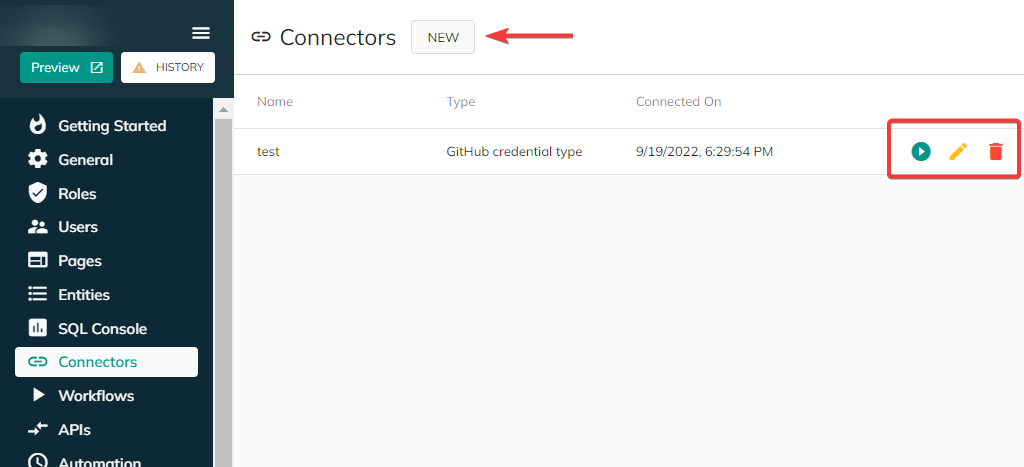
From the same screen you can also Test the connection of an existing connector, Edit it or Delete it.
For each connector, you will need to define a Name and a Type (see below).
Specific settings by type
Database Connection
This connector type allows Plant an App to establish an outbound connection to a SQL database using a standard ADO.NET connection string. It is typically used when Actions or workflows need to execute queries or commands against an external or reference database.
| Type | Notes |
|---|---|
| Connector Name | Logical name for the connector. This can be any descriptive value and is used to reference the connector within the platform. |
| Connection String | Can be either: • The name of a connection defined in the <connectionStrings> section of web.config, or• A full ADO.NET connection string specified inline, equivalent to what would be used in web.config.Example: Data Source=(local);Initial Catalog=NAD1;User ID=theUserId;Password=thePassword;Connection Timeout=300 |
Note: When providing an inline connection string, ensure the credentials and permissions allow the required read and/or write operations. The connection is tested using the configured values at save or test time.
Dynamics Service Credentials
| Type | Notes |
|---|---|
| Organization Service URL | Needs to be in a specific format; please see the official Microsoft documentation for more information. |
| Organization Unique Name | Please see here. |
| Username | - |
| Domain | Optional parameter; to be used when authenticating through Active Directory. |
GitHub credential type
| Type | Notes |
|---|---|
| Username | - |
| GitHub Personal Access Token | See the official GitHub documentation for setup. |
Slack (Webhook)
| Type | Notes |
|---|---|
| Webhook URL | Please see the official Slack documentation about how to send messages using Webhooks. |
| Default Channel | Define the default channel to which the messages will be sent; this field supports both #channel and @user values and can be overwritten in the process definition. |
| User Name | Optional field; if defined, this user will appear as the sender of the message in Slack. |
| Icon URL | Optional field; specify the URL of an icon to be displayed next to the sender's name (must be Slack icon URL). |
| Emoji | specify an emoji as defined in Slack (e.g. :smiley:). |
SMTP Credential Type
| Type | Notes |
|---|---|
| SMTP Authentication Mode | The accepted values are: 0 (Anonymous), 1 (Basic) or 2 (NT LAN Manager). |
| SMTP Server and Port | Server and Port of the SMTP server. |
| Username | - |
| Password | - |
| SMTP Max Idle Time | Connection inactivity time out. |
| Host Email | Used for testing the credential. |
| SMTP Connection Limit | Maximum number of messages per minute that can be sent. |
| Enable SSL | Accepts true/false and 1/0 as values. |
UiPath Account credential type
| Type | Notes |
|---|---|
| Tenant Name | Specify the UiPath tenant name to authenticate upon. |
| Username or Email | - |
| Password | - |
Revised 02/04/2026