Audience:
Site Administrators
Skill Prerequisites:
Backup Procedures,System Maintenance
Understanding the New Upgrade Process in Plant an App v1.28
With the release of Plant an App version 1.28, we introduced a new upgrade process that changes how updates are conducted. In this article, we'll explore the new upgrade screen, what you need to know before initiating an upgrade, and how this process ensures a smoother and more secure experience for your site.
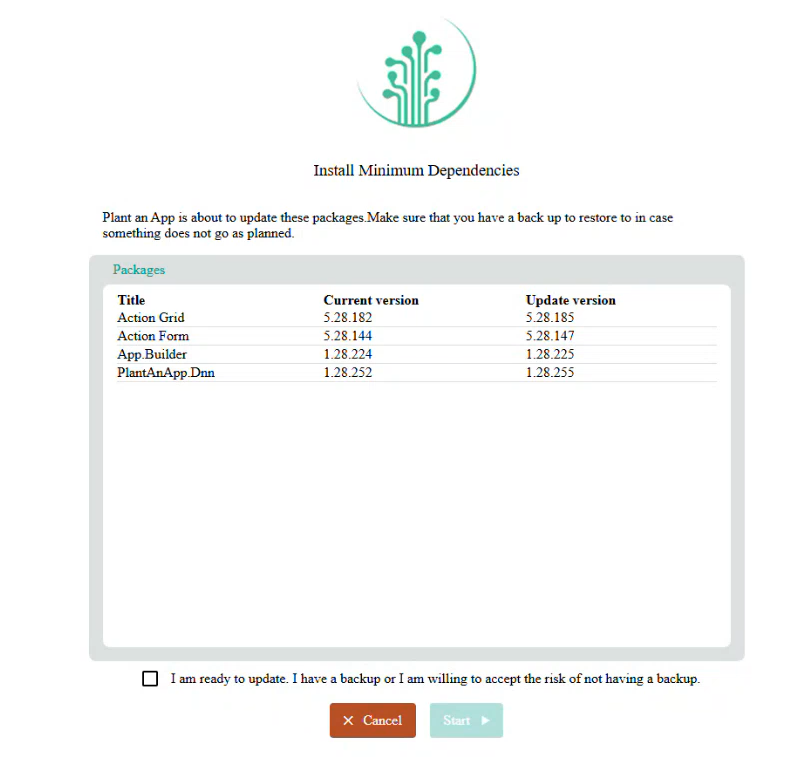
Key Changes in the Upgrade Process
The v1.28 release introduces several crucial changes to the upgrade process, enhancing both security and transparency:
-
Lockouts During Installation
- Once an upgrade starts, all users will be locked out of the site. This means any unsaved work, such as unfinished forms, will be lost.
-
Improved Messaging and Navigation
- A new checkbox prompts you to confirm your readiness to update, acknowledging the risks involved, particularly if you haven't created a backup.
-
Progress and Logs Display
- As the upgrade proceeds, you will see real-time progress updates.
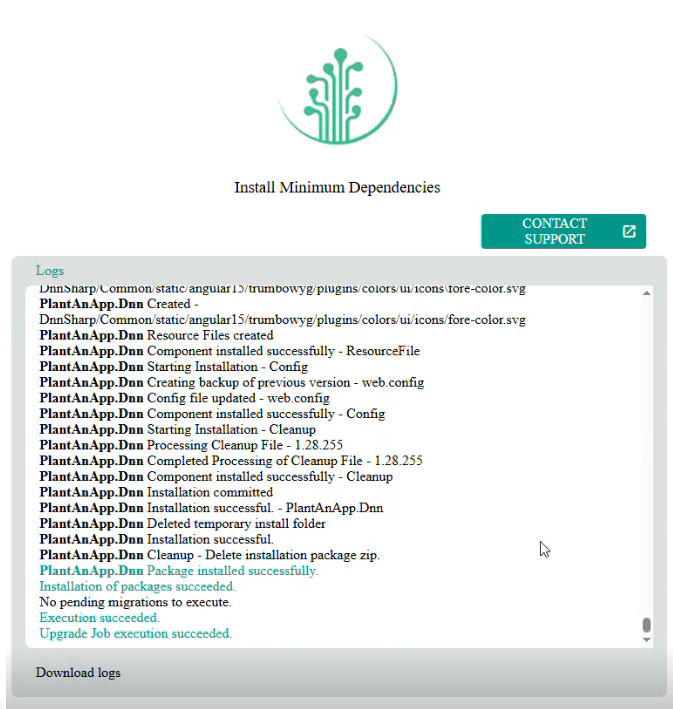
- Logs are now displayed directly on the upgrade screen, providing insight into what the system is doing at each step.
-
Automatic Maintenance Mode
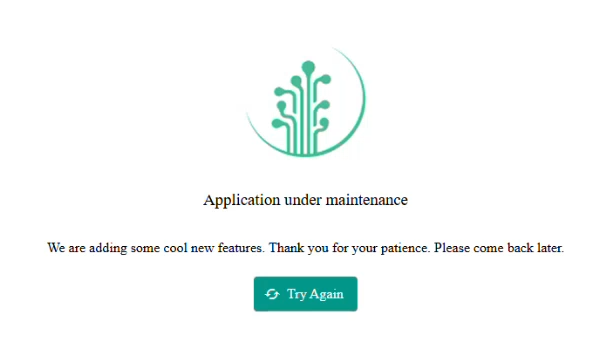
- The site automatically enters maintenance mode during the upgrade, displaying an "Application Under Maintenance" screen to any user trying to access the site.
- This screen does not yet allow for customization, but future versions may include this feature.
Preparing for an Upgrade
Before initiating an upgrade, consider the following steps to ensure a seamless transition:
- Create a Full Backup: Always back up your site data and file system. This is crucial as the update can fail, leaving your site inaccessible until a restoration is performed.
- Communicate with Users: Notify users in advance about the scheduled maintenance and potential downtime.
- Plan for Off-Peak Hours: For high-traffic or business-critical sites, schedule upgrades during off-peak hours to minimize disruption.
What to Expect During and After the Upgrade
During the upgrade:
- Users will see an "Application Under Maintenance" screen with a "Try Again" button. If they attempt access during the update, they will be repeatedly brought back to this screen until the upgrade is completed.
- You won't have access to the site except to view the logs and progress of the installation.
After the upgrade:
- If successful, users can return to normal site functions seamlessly.
- If any issues arise, a Contact Support button will be present to assist in opening a new support ticket.
Final Notes
Understanding this new upgrade process and the associated lockout feature is critical to avoid any surprises during your next installation. Following the recommended actions will help ensure that your site remains secure and operational, minimizing downtime and user disruption.
Revised 11/20/2025