General Settings
Audience:
Administrators
The General tab of the Configuration menu holds application-wide settings: the application's name, license, logo, favicon, password reset page, and session storage mode.
To open it, go to /configuration on your site and select General. Make your changes, then click Save in the top right of the page. Nothing is applied until you save.
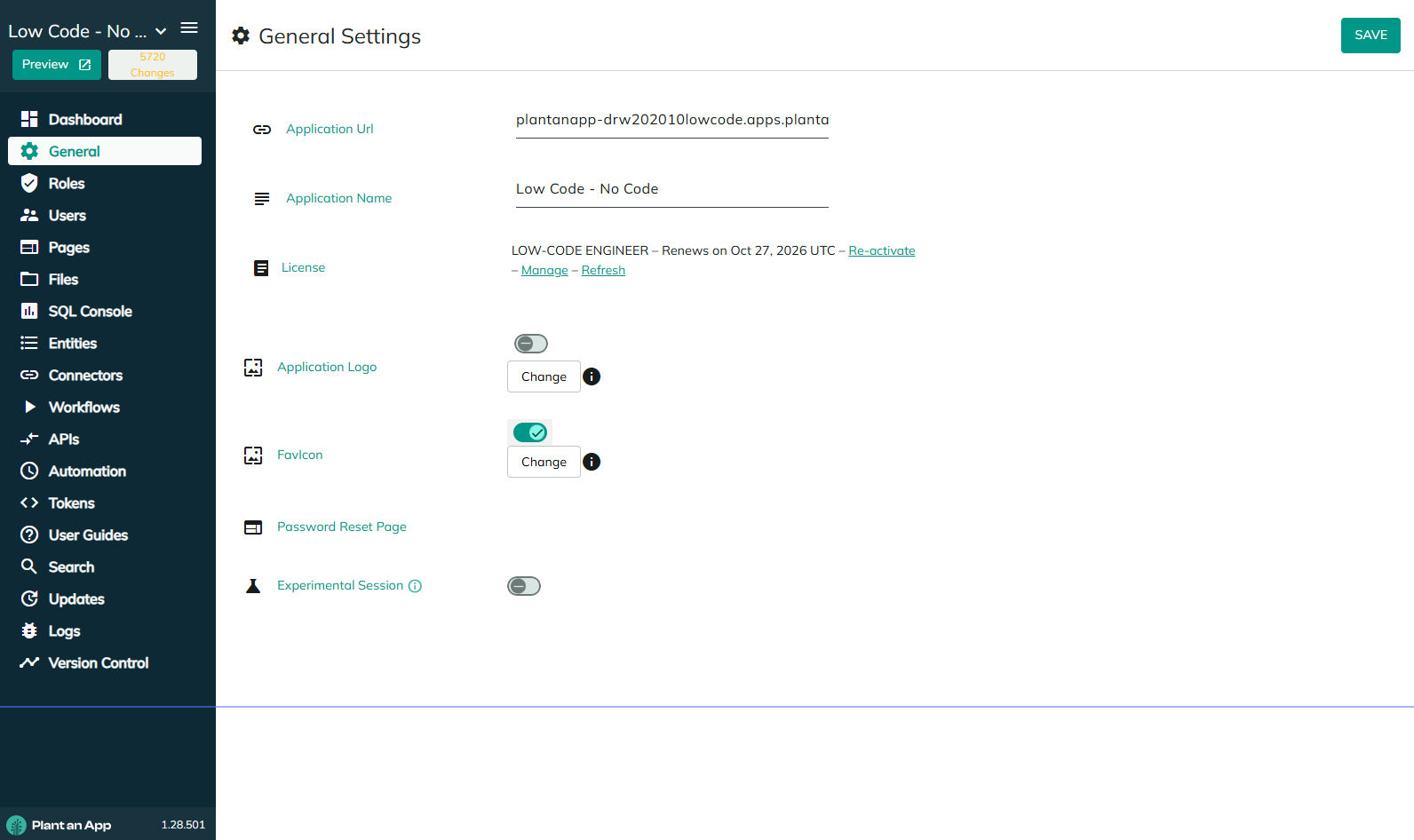
Settings
| Setting | Description |
|---|---|
| Application Url | The domain of the site you are on. Read-only. |
| Application Name | The name of your application. It is also the site name, so it appears in places that show the site name, such as the browser tab title. Required, up to 128 characters. |
| License | Your current plan and license status, with links to manage the license. See License. |
| Application Logo | The logo shown in your site's header. Click Change to upload a new one. Accepts .png, .jpg, .jpeg, .gif and .tiff. Requires the Branding feature. |
| FavIcon | The icon shown in the browser tab. Click Change to upload a new one. Accepts .png and .ico. Requires the Branding feature. |
| Password Reset Page | The page that password reset emails link to. See Password Reset Page. Requires the Advanced Security feature. |
| Experimental Session | Changes how user session data is stored. See Experimental Session. |
If your plan doesn't include the Branding feature, the logo and favicon rows show a lock button instead of Change. If it doesn't include Advanced Security, the Password Reset Page row has no page picker. See Licensing for what each plan includes.
License
The License row shows your plan name and the license's current state. Trial licenses are marked [Trial].
| State | What is shown | Links |
|---|---|---|
| Active | Plan name and the renewal date, in UTC. Perpetual licenses are marked (Perpetual). | Re-activate, Manage, Refresh |
| Trial | Plan name and the expiration date, in UTC. | Buy, Activate, Refresh |
| Expired | Plan name and the date it expired, in UTC, shown in red. | Activate, Manage (or Buy for a trial), Refresh |
| Not licensed | "Not licensed." | Activate |
| Invalid | "Invalid license." | Activate |
- Activate / Re-activate opens the licensing dialog, where you can activate the application with a license.
- Manage / Buy opens your subscriptions in the Plant an App console.
- Refresh checks for changes to your license, such as a renewal or a plan change, without reactivating.
If the last license refresh failed, the date it failed is shown under the plan.

Password Reset Page
Pick the page users land on when they open the link in a password reset email. The page must contain a form that resets the password.
This setting is used by the Send User Reset Password Email action when its Use Configured option is on. Setting the page here lets every reset email in your application point to one page, instead of choosing the page in each action.
Experimental Session
When on, user session data is stored in Plant an App's own session store instead of the standard ASP.NET session. Plant an App's API requests then no longer wait on the ASP.NET session, which improves application performance.
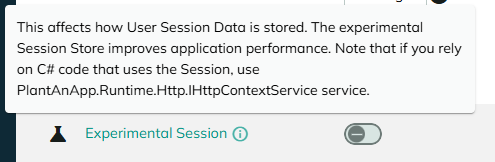
The experimental session store is kept in the web server's memory. Session data is lost when the application restarts, such as when the app pool recycles, and isn't shared between servers in a web farm.
If you have C# code that reads or writes the session, use the PlantAnApp.Runtime.Http.IHttpContextService service rather than the ASP.NET HttpContext.Session, so it keeps working when Experimental Session is on.
Revised 10/06/2026