Account
Audience:
Business UserSkill Prerequisites:
Basic Account Management
Managing Your Account in Plant an App
This article provides an overview of the features available under the Account menu option, essential for managing user subscriptions and members effectively.
Account Menu Option
Upon logging into your account on Plant an App, you will find the Account option in the menu option. This option is split into two primary tabs: Subscriptions and Members.
Subscriptions Tab
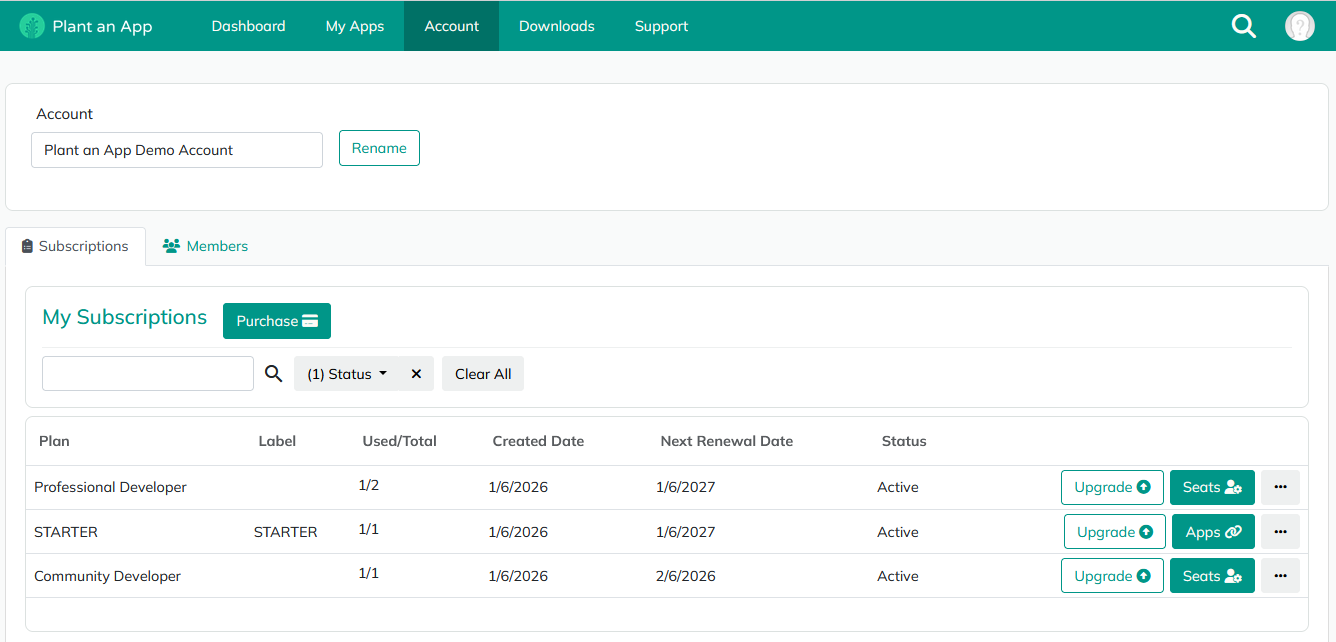
The Subscriptions tab offers a detailed view and management capabilities for your active and past subscriptions. Key features include:
-
Purchase Button: Allows you to initiate the purchase of additional subscriptions. Clicking this will open a form to contact sales, who will then reach out to discuss your subscription needs.
-
Filtering Options:
- Default filter shows only active subscriptions.
- Use the Clear All button to view all subscriptions.
- The Status filter can be used to display subscriptions by their specific status.
-
Upgrade Options:
- Each subscription comes with an Upgrade button. Clicking it opens a form to communicate your upgrade needs, which will be addressed by the sales team.
-
Developer Seats Management:
- Subscriptions including developer seats display a Seats button. This leads to a list detailing all developer seats and their assigned users.
- Use the Change button to reassign seats or allocate them initially.
-
Edit Functionality:
- Use the Edit button to rename your subscription, aiding in the identification of each subscription’s purpose.
-
Apps Button:
- If a subscription is associated with apps, the Apps button redirects you to the My Apps page, showcasing only the apps tied to that specific subscription.
Members Tab
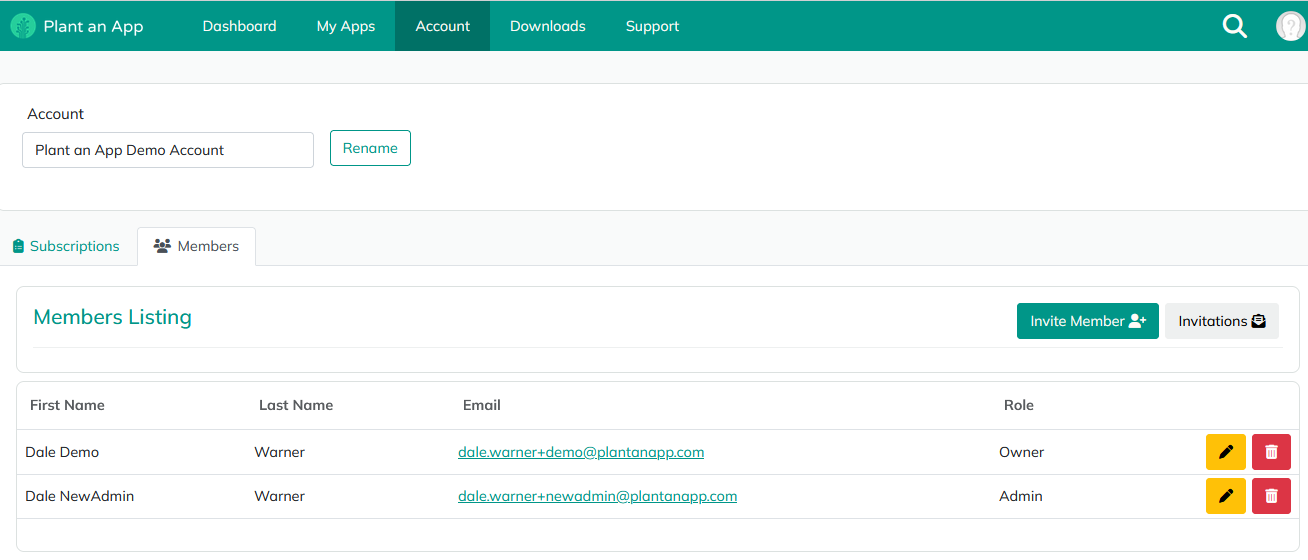
The Members tab provides a snapshot of all users linked to your account and their respective roles, categorized as owner, admin, or user.
-
Invite Members:
- Depending on your role, you can invite new members by clicking Invite Member and completing the form. This triggers an email invitation to join the account via a link.
-
Manage Invitations:
- View and manage pending invitations directly from this tab.
-
User Management:
- You can modify the user's name and role with the Edit (pencil) button.
- The red Trash button enables user removal, though you cannot delete your own account.
The Members tab empowers account administrators to efficiently manage access and roles within their organization, ensuring smooth operations and collaboration.
Conclusion
The Account menu option in Plant an App provides robust tools for managing subscriptions and member access. Whether adjusting your subscription details, assigning developer seats, or managing user roles, each function is designed to streamline your account management experience.
For further guidance, check out additional resources in our documentation or contact our support team.
Revised 01/06/2026