My Apps
Audience:
Citizen Developer
Skill Prerequisites:
None
Understanding the "My Apps" Section in Plant an App
The "My Apps" section in Plant an App provides a overview and management interface for applications associated with your account. This feature is accessible from the main account menu under the "My Apps" option. Upon selection, you'll be greeted with a tabbed interface designed to streamline app management.
1. My Apps Overview
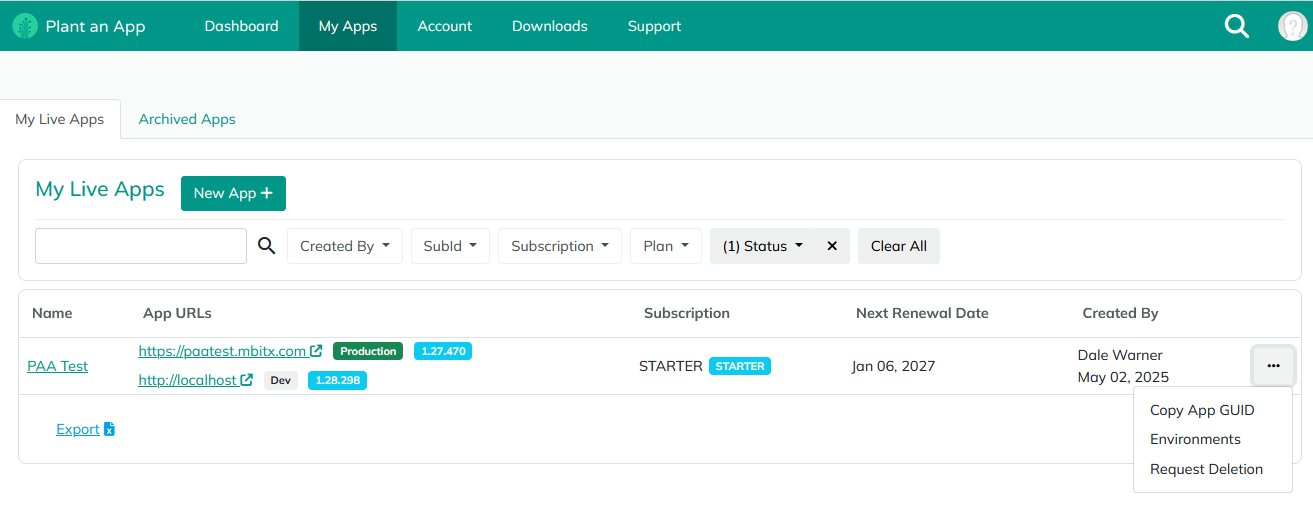
-
My Live Apps: This is the default tab where all currently active applications are displayed. Each entry shows the app’s name, the associated URLs, and whether the app is set for production or other environments like development. Subscribers will also find information about the app's subscription plan, next renewal date, and creator details.
-
Archived Apps: Here, you can review apps that are no longer active. This tab helps keep track of past projects or applications that may be needed for reference or potential reactivation in the future.
2. Managing and Creating Applications
At the top of the interface, you'll find a "New App" button marked with a "+" symbol. This button allows you to launch a new app within the Plant an App infrastructure. It's important to note that while this tool is invaluable for testing and development, it's not typically utilized for managing production apps.
3. App Management Features
Each live or archived app entry includes a variety of management options accessible via the ellipsis menu (three dots icon) located to the right of each app listing. These features include:
-
Copy App Global ID: You can copy the app's Global ID to your clipboard, which is useful for support correspondence or detailed application identification.
-
Request Deletion: This option is designed for when an app is no longer in use and should be removed from your subscription. Submitting a deletion request will forward your application removal needs to the support team, ensuring the app doesn't count against your active subscriptions.
-
Environments Display: Each app can have multiple environments such as Development, Staging, and Production. Selecting this option will display all environments linked to the app, offering insight into its different stages and deployment settings.
The "My Apps" section provids users the ability to oversee, create, and manage their applications efficiently.
For additional guidance on using the "My Apps" section, see other related articles in the documentation or connect with support for personalized assistance.
Revised 01/06/2026