Audience:
Citizen DeveloperSkill Prerequisites:
Basic Navigation of Plant an App
Understanding the Downloads Menu in Plant an App
The Downloads menu in the Plant an App platform is a crucial resource for users who need to install Plant an App. In this article, we will explore the functionality and options available within the Downloads menu.
Typical Use Cases
- Downloading the latest version of the Plant an App installer.
- Accessing stable and beta versions of the software.
- Obtaining installation guides and resources.
Prerequisites for Access
To access the Downloads menu, the user must be assigned the DNN Sharp User role. This role grants permission to download software and related resources. If the Downloads option isn't visible in your menu, you should open a support ticket to request access.
Using the Downloads Menu
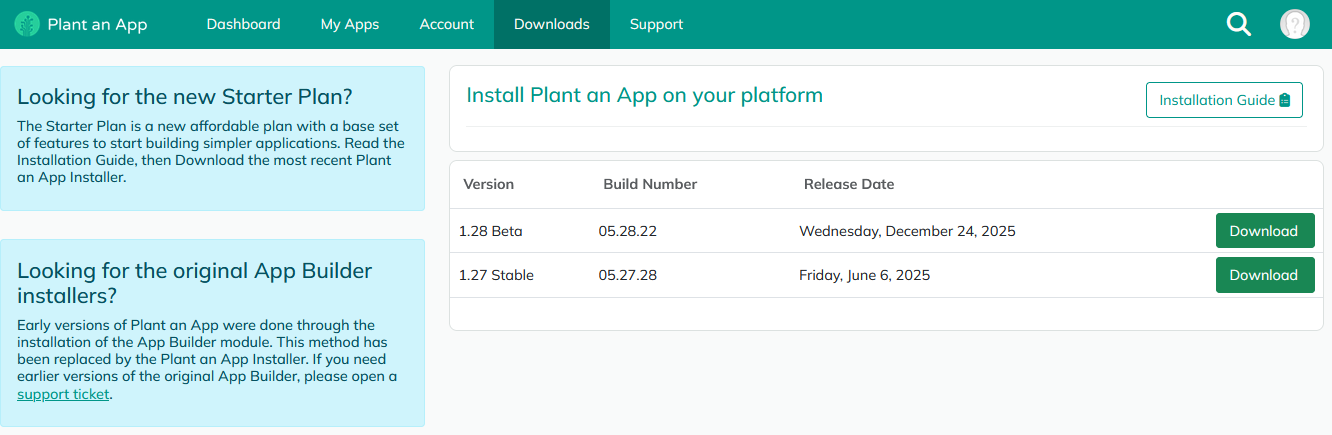
Once access is granted, the Downloads menu provides options to:
- Download the Installer: This allows users to install Plant an App on their desired platform.
- Access Installation Guides: Comprehensive guides are available to help users follow the necessary steps for installation. These guides are regularly updated to ensure accuracy.
- Select Software Versions: Users can choose between the current stable version and any available beta versions. The latter is suitable for those looking to test new features before they are officially released.
Next Steps
After ensuring you have access to the Downloads menu, explore the resources available. Regularly check for updates to keep your tools and applications up-to-date.
Revised 01/06/2026