Forms 2.0 - Form Builder
This page is preliminary and subject to change as Forms 2.0 continues to be developed.
The Form Builder is the design surface for a Forms 2.0 Form module. It's opened from the module's settings, and is organized around two tabs, Build and Settings (see the Settings page for the latter).
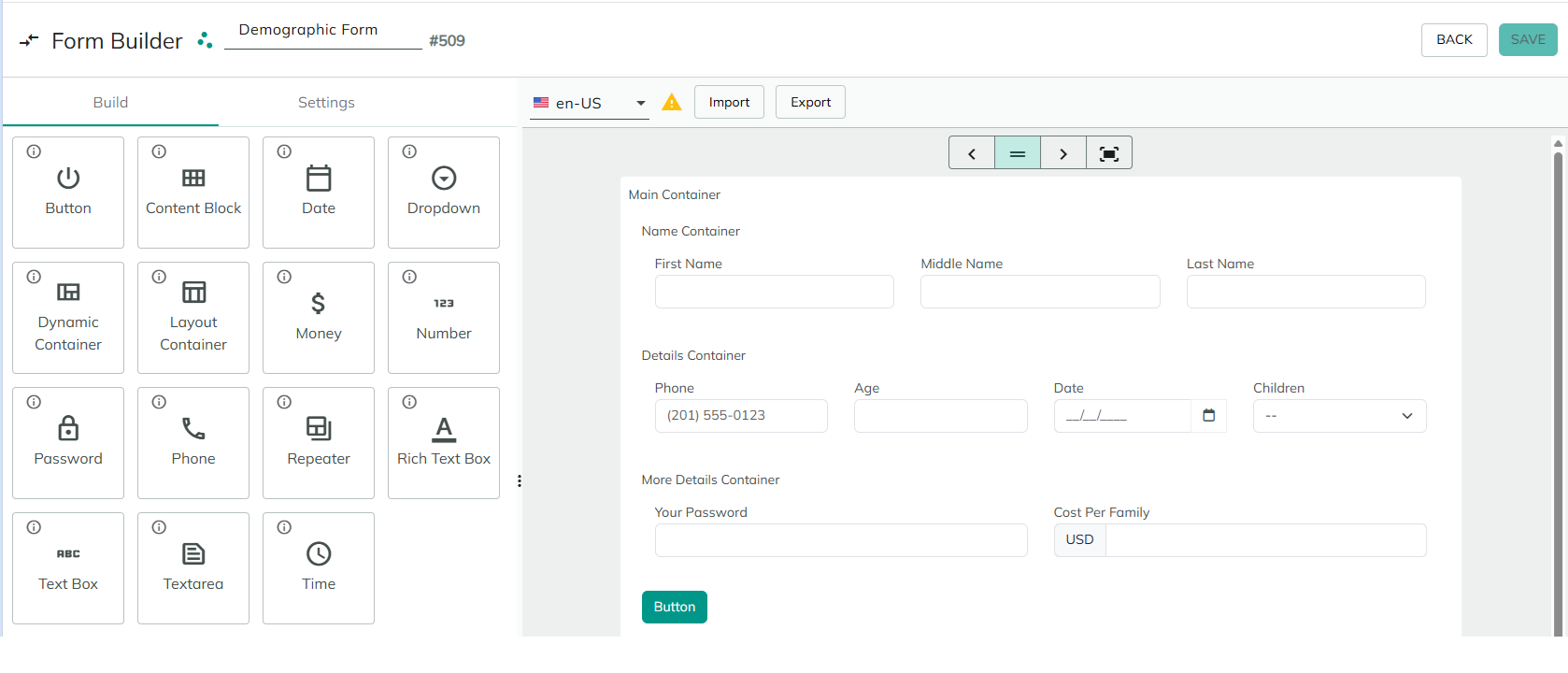
Header
Across the top of the Form Builder:
- The form name (editable inline) and the form ID (shown as
#<id>), which is useful for referencing this specific form in tokens or scripts. Back, to leave the Form Builder.Save, to persist your changes.
Build tab
The Build tab is where you add fields to the form and arrange them. It has two parts: a field palette on the left, and the Canvas on the right.
Field palette
The left-hand panel lists every available field type as a clickable/draggable tile (for example Text Box, Dropdown, Date, Number, Phone, Rich Text Box, Button, and more). Adding a field to the Canvas adds an instance of that field type to your form.
A few field types are worth calling out because they're easy to mix up:
Layout Container- groups other fields together purely for layout (rows, columns, or a free-form grid). Use it to arrange fields side by side or into sections, as shown in the example above (Main Container>Name Container,Details Container,More Details Container).Dynamic Container- looks and behaves like a Layout Container, but fields can also be added into it programmatically at runtime (for example, from a form event's actions), rather than only at design time.Repeater- lets the person filling out the form add and remove repeating groups of fields themselves (for example, to enter multiple addresses).
Canvas toolbar
Above the Canvas:
- A language selector (for example
en-US), used to preview the form's text in any of the site's languages. A warning icon next to it flags that the currently selected language has fields with missing translations - see Localization on the Overview page. ImportandExport, to load or save the form's field configuration as a file.- The Canvas width toggle, to preview the form at different widths - see the Canvas page for details.