Forms 2.0 - Build
caution
This page is preliminary and subject to change as Forms 2.0 continues to be developed.
The Build tab of the Form Builder is where you add fields to your form and arrange them. It's made up of a field palette on the left and the Canvas on the right.
Adding fields to the Canvas
To add a field to your form, click its tile in the field palette and drag it onto the Canvas, then drop it where you want it to appear. Once a field is on the Canvas, you can drag it to reposition it - including into or out of a container field - to rearrange your form's layout.
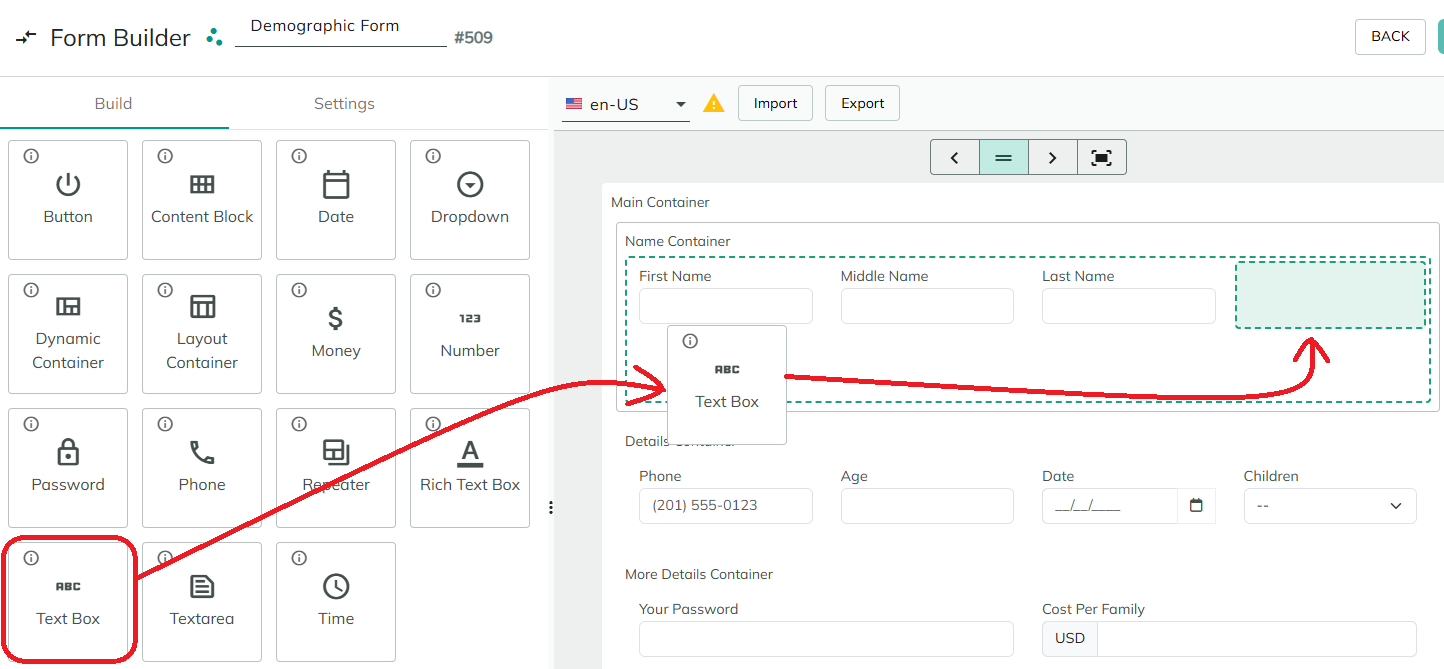
Field types
The field palette offers the following field types. Most also share a set of Common Field Settings, in addition to the parameters specific to each one:
- Button - when pressed, performs any actions attached to it. You communicate the purpose of a button using a text label, an icon, an image, or both.
- Content Block - displays non-interactive content.
- Date - use to select just the date.
- Dropdown - allows users to select a value from a list.
- Dynamic Container - a container that can hold other fields, including fields added into it at runtime.
- Layout Container - a container that can hold other fields, for arranging them visually.
- Money - displays a currency amount with configurable formatting. The user inputs the amount while the currency symbol is shown separately.
- Number - a field that allows users to enter numeric values.
- Password - a password field.
- Phone - collects phone numbers, with options for country selection, formatting, flags, and auto-detection.
- Repeater - a container that can hold other fields and repeats for multiple items.
- Rich Text Box - a rich text box field that users can type text into.
- Text Box - a normal text box field that users can type text into.
- Textarea - allows users to input large amounts of text.
- Time - use to select just the time.