Forms 2.0 - Settings
This page is preliminary and subject to change as Forms 2.0 continues to be developed.
The Settings tab of the Form Builder holds form-level configuration - as opposed to the Build tab's per-field settings.
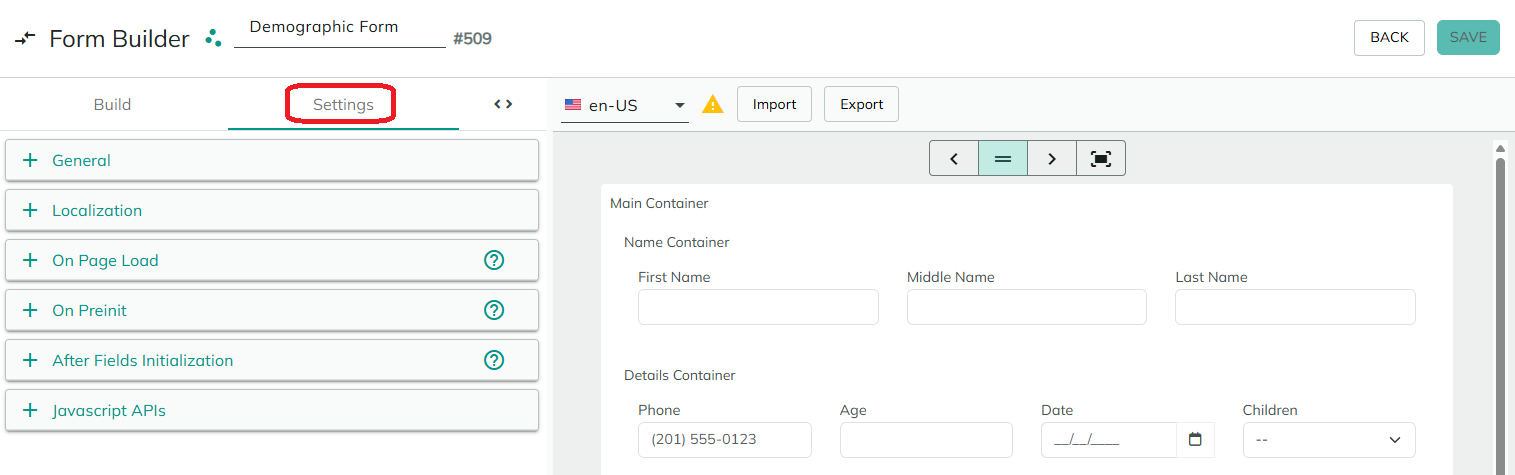
General
- Active Condition - a server-side expression controlling whether the form is active at all (for example
[HasRole:registeredUsers|true]). Supports Tokens. - Initially Visible - whether the form renders directly on the page (Inline, checked) or stays hidden until something opens it, such as a button action or the Javascript APIs (Popup, unchecked).
- Form CSS Classes - one or more CSS class names, separated by spaces, applied to the form's root element. Supports Tokens.
- Show Loading Animation - shows a loading animation while the form initializes.
- Debug Mode - shows the form's compiled configuration and additional debug logging, for troubleshooting.
- Enable Auto Save Drafts - see Autosave and Drafts below.
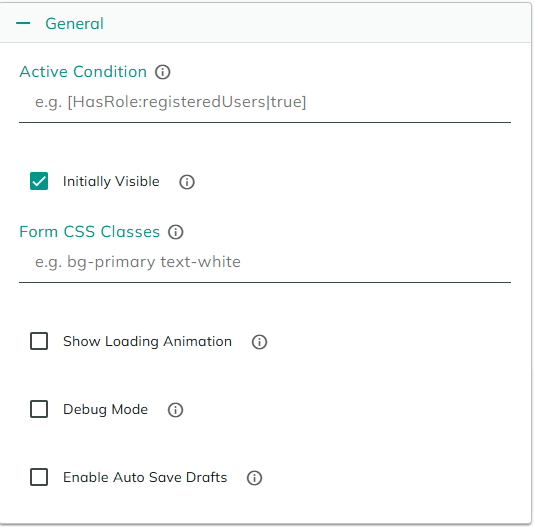
Localization
Enable Localization is available once the form has been saved, and only on sites with more than one language. Once checked, it unlocks:
- Download POT - exports a template of the form's translatable text (labels, hints, and other localizable text).
- Download
<language>PO - exports the current translations for a given site language. - Load PO - imports translations from a PO file. Imported translations are staged and only saved when you save the form.
Once localization is enabled, a language switcher appears in the Canvas toolbar on the Build tab, letting you preview the form in any site language and flagging fields with missing translations. See Localization on the Overview page for the end-user-facing behavior.
Events
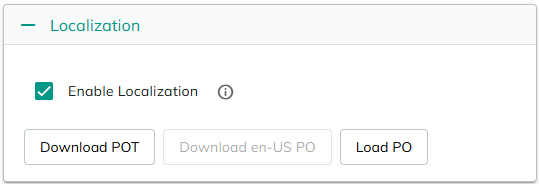
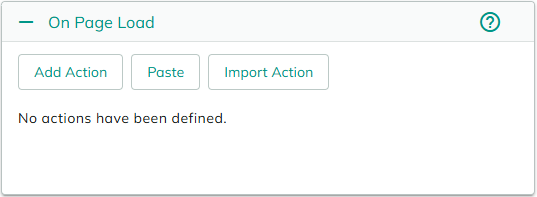
Three panels let you attach a stack of Actions to run at different points as the form loads. Each panel offers Add Action, Paste, and Import Action to build up its list of actions.
There's no separate "on submit" event here. Submission logic - what happens when a user submits the form - is attached to a Button's On Click Handler, not configured on this tab.
On Page Load
Runs when the page containing the form loads.
On Preinit
Runs before the form's fields are initialized - use this to load data you want available while fields are being set up.
Also offers a Persist data for submit checkbox with a Data Keys list, to carry specific pieces of data from these actions through to the form's submission.
After Fields Initialization
Runs after the form's fields have been initialized.
Also offers a Persist data for submit checkbox with a Data Keys list, to carry specific pieces of data from these actions through to the form's submission.
Autosave and Drafts
Enable Auto Save Drafts (in General above) turns on automatic saving of a user's in-progress answers to a draft, stored in their browser, as they fill out the form - see Autosave / Drafts on the Overview page. It's off by default. If you enable it, also add a Clear Draft action (typically on successful submission) so completed submissions don't leave a stale draft behind.
Migrating an existing form
When a Forms 2.0 form is created via the classic Form module's Migration Plan (see Migrating from the classic Form module on the Overview page), opening it in the Form Builder shows a banner reminding you to review the migrated settings before saving.
Use the original Migration Plan report as your checklist: anything marked Migrated carried over as-is, but anything marked Migrated with warning, Transformed, or Skipped should be double-checked here in Settings (and on the Build tab for fields) before you rely on the new form.
Javascript APIs
Forms 2.0 exposes a JavaScript API (paa.form.show/hide/reinit) for showing, hiding, and reinitializing a form from your own scripts - useful when a form's Initially Visible setting is set to Popup. See Javascript APIs for the full API.