Forms 2.0 - Canvas
This page is preliminary and subject to change as Forms 2.0 continues to be developed.
The Canvas is the visual design surface on the Build tab of the Form Builder, where you arrange the fields you've added from the field palette.
Selecting, deleting, and cloning fields
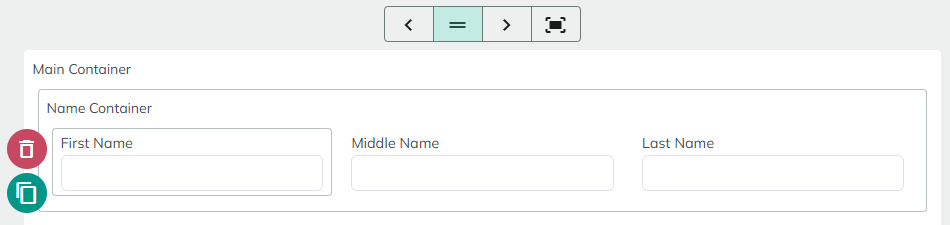
Click anywhere on a field or container to select it and open its settings in the left-hand panel (see Common Field Settings and each field's own page for what's there). Hovering over a field also reveals a small toolbar with:
- Delete - removes the field from the form.
- Clone - duplicates the field, including its settings.
Rearranging fields
Drag a field to reposition it, including into or out of a container. How dragging behaves depends on the container's Layout Mode (set on the Layout Container, Dynamic Container, or Repeater holding the field, or on the form's root layout):
- Vertical and Horizontal modes automatically repack fields in order as you drag - there's no free positioning.
- Manual mode is a free-form grid: you can drag a field anywhere and resize it from its left or right edge (height adjusts automatically to content). While dragging, a field snaps to a neighboring field's edge if you drop it close by; otherwise it snaps to the grid. Double-clicking a resize handle expands the field to fill the available space up to the next field or the container's edge.
The Canvas doesn't currently support undo/redo or selecting multiple fields at once. Ctrl+S saves the form from anywhere in the Form Builder.
Canvas width
The width toggle above the Canvas previews your form at four widths, so you can check how your layout adapts before it goes live:
| Width | Approximate size |
|---|---|
| Narrow | The larger of 600px or 30% of the available space. |
| Medium (default) | The larger of 900px or 55% of the available space. |
| Wide | The larger of 1200px or 75% of the available space. |
| Full Width | 100% of the available space. |
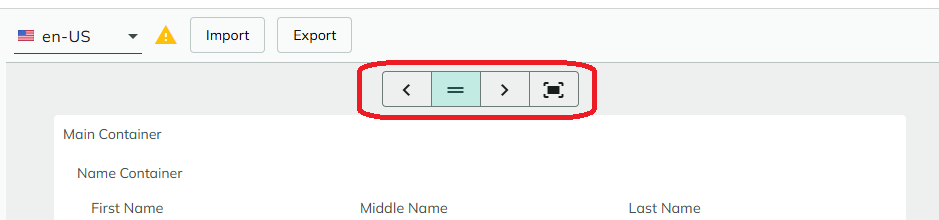
The Canvas width is a preview aid only, saved with the form but not used by the live, embedded form - the actual width a visitor sees depends on where the form is placed on the page.