Connecting the Mobile App New in 2.0
Audience:
Business Users
General Description
To use a Plant an App site on your phone, install the Plant an App app and connect it to the site once. You don't type a password on the phone: you scan a QR code from the site, and the app signs you in with the account you use on the web.
Install the App
The app is free:
- Android: Plant an App on Google Play
- iPhone: Plant an App on the App Store
Connect with the QR Code
-
On the site, sign in, open your user menu and choose Connect mobile app.
-
The Connect mobile app window shows a QR code. It's valid for 2 minutes, and the window shows a new one when it expires.
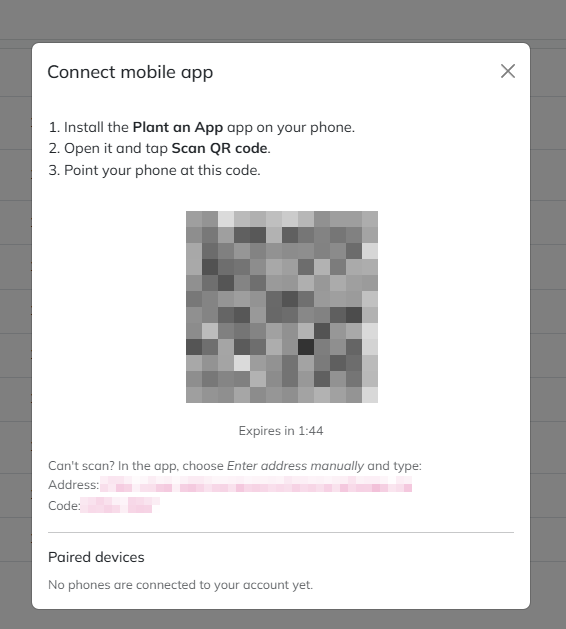
-
Open the app on your phone, tap Scan QR code and point the camera at the code. The first time, allow the app to use the camera.
-
Check that the address under Connect this device to is your site's, and tap Connect.
The app opens the site's menu. Your phone appears under Paired devices in the Connect mobile app window.
If the code has expired or was already used, the app says "This code has expired or was already used. Generate a new QR code and scan again."
Enter the Address Manually
If you can't scan, for example when the site is open on the same phone, use the address and code shown under the QR code.
- In the app, tap Enter address manually.
- Type the App address and the Connection code, and tap Continue.
- Tap Connect.
Notifications
The first time you open a site, the app asks to send you notifications. Allow them to get notifications from the site on your phone, for example when a task is assigned to you. You can change this later in your phone's settings.
Several Sites
Connect each site you use the same way. Your apps, the app's first screen, lists them; tap one to open it. To add another, tap + at the top of Your apps. To remove one, long-press it: its saved data and the entries that haven't been sent are deleted from the phone.
Your Account
Tap your initials at the top of a site to see the account you're signed in with and the site's address.
- Work offline uses only what's saved on the phone, for example where the signal is too weak to load pages. It applies to all sites.
- Saved on this phone shows how much of the site is saved on the phone. It's encrypted.
- All sites goes back to Your apps.
Sign Out or Disconnect a Phone
- Sign out, on the account screen, removes the site and what's saved for it from the phone. Entries that haven't been sent yet are lost; the app tells you how many before you confirm.
- Lost your phone? On the site, open Connect mobile app and click Disconnect next to the phone under Paired devices. It's signed out at once, and what's saved for the site is deleted the next time it connects. An administrator can also disconnect it. See The Mobile Screen.
Related Pages
Revised 11/13/2026