Mobile App Capabilities New in 2.0
Audience:
Business Users,Low-code Engineers
General Description
The mobile app shows the site's menu, pages, lists and forms in screens made for a phone. You see what you see on the web, with the same permissions.
| You can | In the app |
|---|---|
| Browse the site | The site's menu and its pages. |
| Work with lists | Search and scroll through lists, open a record, run the list's buttons. |
| Fill in forms | Forms with fields made for a phone. |
| Open documents | Links to files in lists and records, and files that buttons download. |
| Work on tasks | Your tasks from My Tasks, and buttons you add to approve or reject them. |
| Get notifications | On the phone, even when the app is closed. Tapping one opens what it's about. |
| Work without a connection | Lists and forms your administrator makes available offline. |
Pages
Each site opens on its menu. Tap a page to open it.
The app shows text, tabs, lists and forms itself. For anything else on a page, it shows Open, which opens that part in a web view inside the app, already signed in. This needs a connection.
Lists
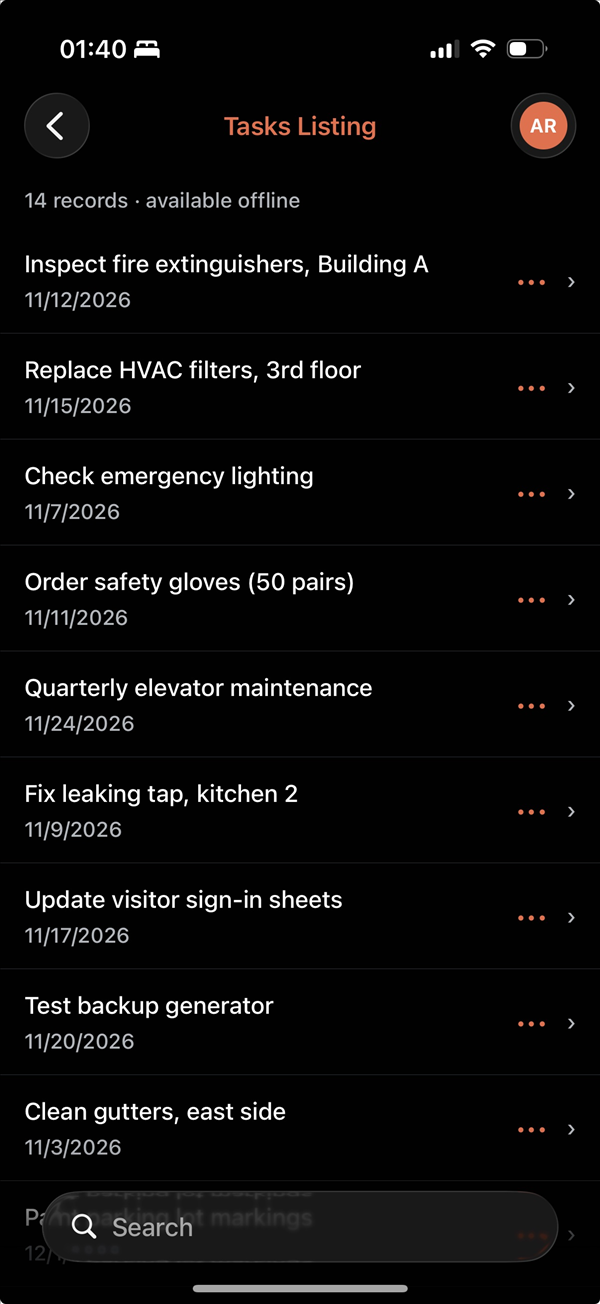
A list on a page shows its first rows, with the list's buttons above them. See all opens the whole list.
In the whole list, search with the Search box and scroll to load more rows. ••• on a row shows the buttons for that row.
Tap a row to see all of its fields and its buttons. Open details on the web opens the record's page from the site, when the list links to one.
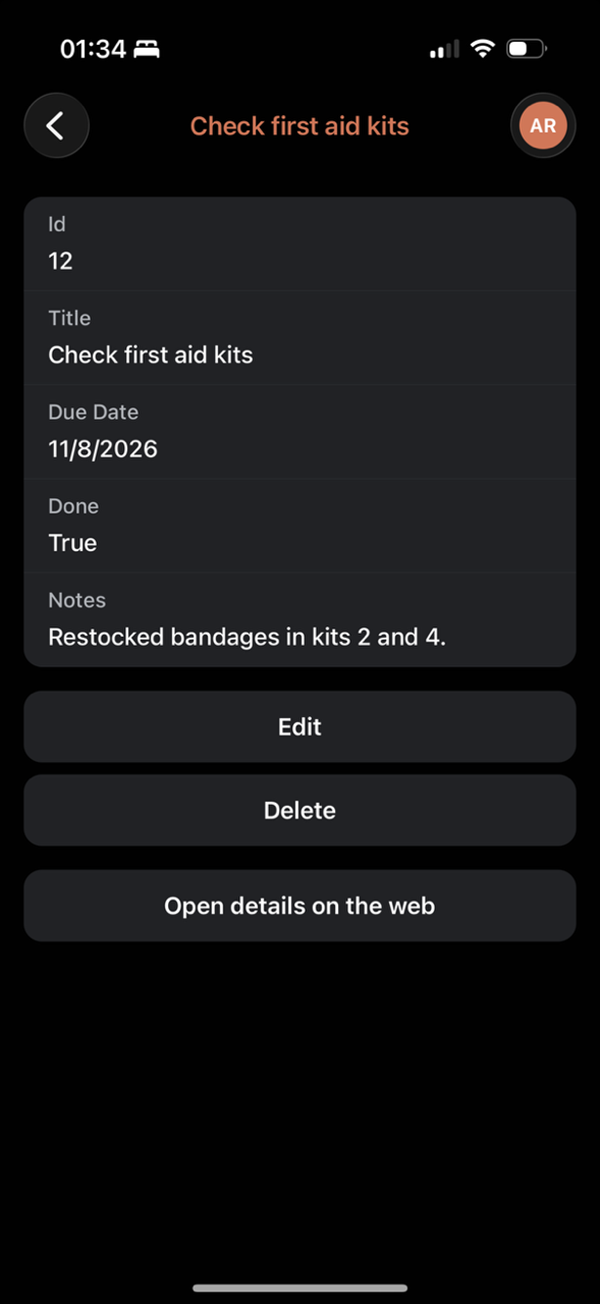
The buttons run as they do on the site: they can open a form, show a message, open a page or refresh the list.
Forms
Forms open in the app, with fields for text, numbers, dates, times, choices and checkboxes. When you submit, the form's actions run on the site and the app shows their messages. For a form the app can't show, Open opens it in a web view inside the app.
Documents
Links to files in lists and records open inside the app, or in the phone's browser when they point to another site. Buttons that download a file open it in the phone's viewer, such as the PDF viewer, from where you can also share or save it.
Tasks and Approvals
The My Tasks page is in the app like any other page, with the tasks assigned to you and the buttons of its list.
To approve or reject from the phone, add a page with a list on the Tasks data source, for example My approvals, with a button for each outcome, such as Approve and Reject, that completes the task with that outcome. See Buttons on a Task Grid. Don't add the buttons to the list of My Tasks itself: App Builder rebuilds that list after some updates.
An outcome that needs a comment can't be given from a button. Complete those tasks on the site.
Notifications
The site can send you notifications on your phone, for example when a task is assigned to you or when a request you made is approved. They arrive even when the app is closed. Tap one to open the task, record or page it's about.
Each site has a bell at the top that lists its notifications, with the unread ones highlighted. The site's workflows decide who gets a notification and when.
Working Offline
When the phone has no connection, a header at the top of the app says so, and the app uses what's saved on the phone.
- Lists available offline can be browsed and searched. The list shows "available offline".
- Forms that take entries offline can be filled in. The entries wait on the phone and appear at the top of their list, marked as waiting.
- The Outbox shows the entries waiting to be sent. They're sent when the phone is back online.
| Status | Meaning |
|---|---|
| Waiting to send | The entry is sent when the phone is back online. Retry now sends it at once. |
| Sending… | The entry is being sent. |
| Needs attention | The site didn't accept the entry, for example because a field isn't valid. Fix opens it to correct and send again. |
Discard deletes an entry that hasn't been sent.
Work offline, on the account screen, makes the app use only what's saved on the phone even with a connection, for example where the signal is too weak to load pages.
Security
- You see only what your account may see on the site.
- What's saved on the phone is encrypted.
- A lost phone can be disconnected from the site, by you or an administrator. What's saved for the site is deleted the next time it connects. See Sign Out or Disconnect a Phone.
Considerations
- Buttons that work only in the browser, and buttons that act on rows you select, aren't shown in the app.
- Without a connection you can add new entries, but not edit existing records.
- Without a connection, the app shows what it saved: pages you've opened and rows you've viewed. Only lists available offline have all their rows.
- Forms built with Forms 2.0 open in a web view inside the app.
Related Pages
Revised 11/13/2026