My Tasks
Built-in Tasks is a concept feature. It's still being developed and can change before it's released. It's available only when the site's license includes the Concept feature Tasks.
Audience:
Low-code Engineers,Business UsersSkill Prerequisites:
Built-in Tasks
General Description
My Tasks is the page where people find the tasks waiting for them and work on them, across every application on the site. A record's Tasks tab shows the same kind of list for the tasks about that record.
App Builder creates the page once, when it sets Tasks up: a page named My Tasks at the root of the site, shown in the menu and open to registered users. It's an ordinary page, so you can move it or change its look like any other. The list comes from the Tasks data source, so each person sees only the tasks they're allowed to see. See Who Can See a Task.
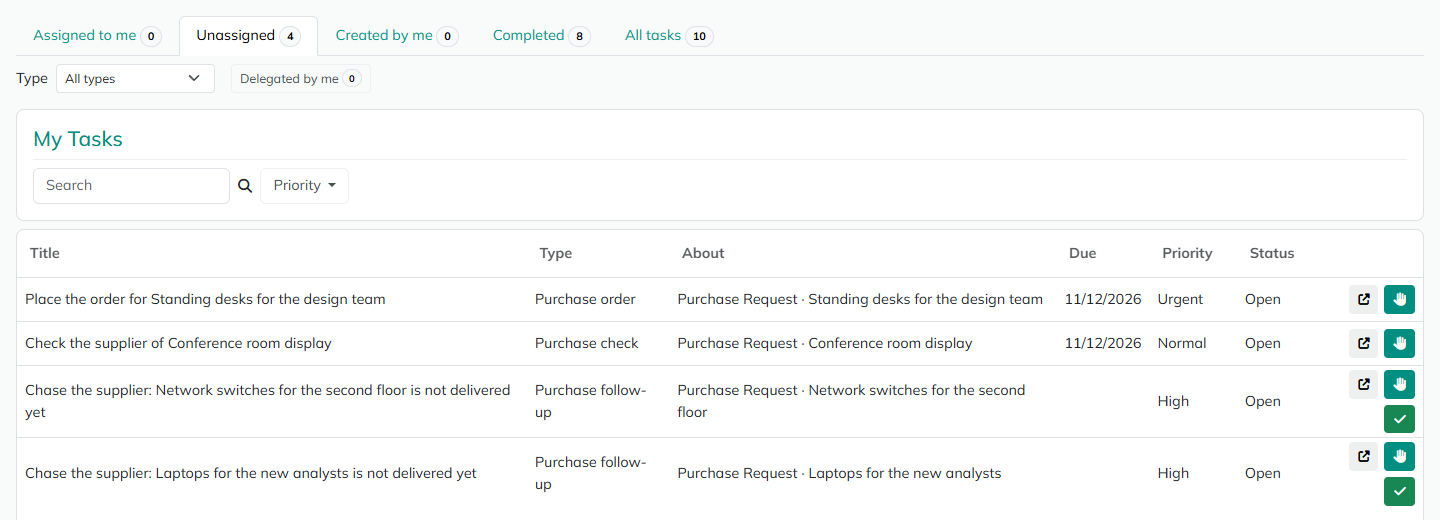
Tabs and Filters
| Tab | Lists | Shown to |
|---|---|---|
| Assigned to me | Your open tasks. This tab opens first. | Everyone |
| Unassigned | Open tasks without an assignee whose candidate roles include one of your roles. Take one with Assign to me. | Everyone |
| Created by me | The tasks you created, open or closed. | Everyone |
| Completed | The completed and cancelled tasks you can see. | Everyone |
| All tasks | Every task of the types you administer. A superuser sees every task. | Task administrators of at least one type, and superusers |
- Each tab shows how many tasks it lists.
- Type narrows the tabs, their counts and the list to one task type. All types shows every type.
- Delegated by me is a toggle beside the type filter. On, the list shows the tasks you delegated to someone else, with its own count. Click it again, or a tab, to turn it off.
- "Loading tasks…" shows while the counts load. If they can't be loaded, it says "The counts could not be loaded. Reload the page to try again."
When a list is empty, it says so: "Nothing assigned to you.", "No unassigned tasks for your roles.", "You haven't created any tasks.", "No completed tasks yet.", "No tasks." on All tasks, and "You haven't delegated any tasks."
The List
| Column | Shows |
|---|---|
| Title | What has to be done. You can search by title. |
| Type | The task type. |
| About | The records the task is about, as "Entity · record name". |
| Due | The due date. |
| Priority | Low, Normal, High or Urgent. You can filter by priority. |
| Assignee | Who has the task. Shown on Created by me, Completed, All tasks and Delegated by me; on Assigned to me it's always you, and on Unassigned nobody. |
| Status | Open, In progress, Completed or Cancelled. |
The list starts with the earliest due date; tasks without a due date come last. Click Title, Due or Priority to sort by it. If the list can't be read, it says "Tasks could not be loaded. Try again."; administrators also see the reason.
Row Buttons
Each row has small icon buttons; hover over one to see its name. A button shows only when you may use it, and the list reloads after it runs.
| Button | Shows when | What it does |
|---|---|---|
| Open | Always. | Opens the task panel. |
| Assign to me | The task is unassigned and you're in one of its candidate roles. | Makes you the assignee. |
| Start | You're the assignee and the task is Open. | Moves the task to In progress. |
| Complete | You may complete the task, its type has a single outcome and no attached record form. | Completes the task with that outcome. An unassigned task is assigned to you first. |
| Unassign | You're the assignee, the task has candidate roles and you're in one of them. | Gives the task back to its candidate roles. An In progress task goes back to Open. |
The Task Panel
Open shows the task panel. The top of the panel is a summary of the task:
- the title, and badges for the type, the status (with the outcome once it's completed, for example "Completed: OK") and Overdue when the task is past its due date,
- Due ("No due date" when there's none), Assignee ("Unassigned: anyone in the candidate roles can assign it to themselves" while nobody has it), Candidate roles, Delegated by, Priority,
- Created, with who created it ("System" for a task created by a checklist or a workflow running as the system), Completed, and Comment, the comment given when it was completed or cancelled,
- the description,
- About: the records the task is about. Each links to its detail page when you may read the record; otherwise it says "a record you cannot read". The property that attaches it shows in brackets.
Dates show in your time zone. A due date picked as a day shows as that day.
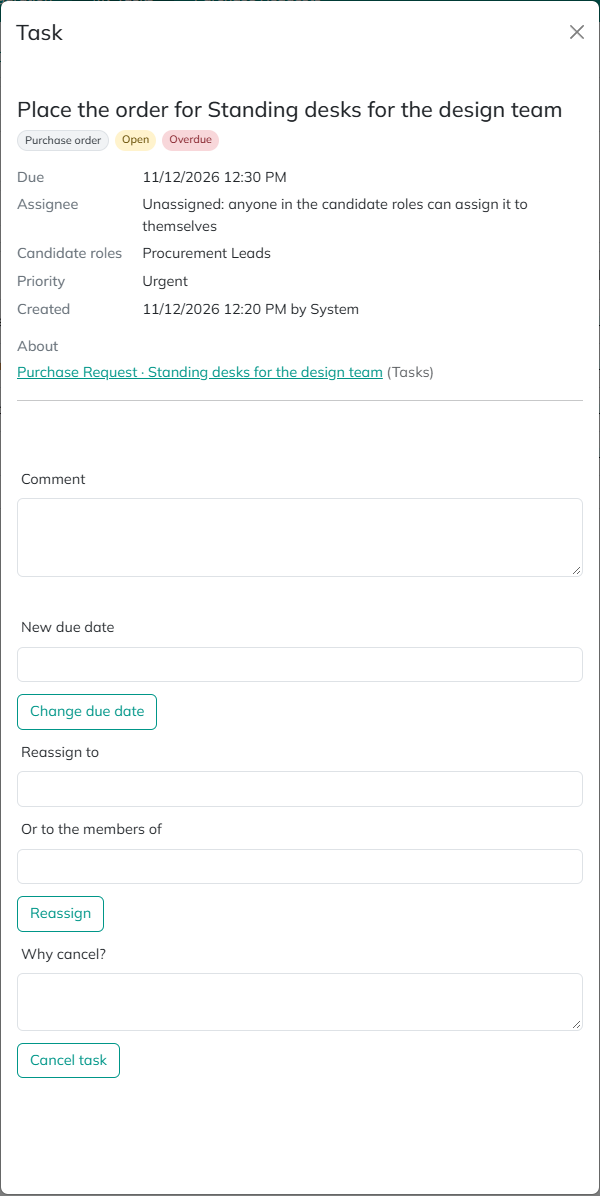
Below the summary, each part shows only when you may use it, and the rules are checked again when you click. The Comment box is shared by Complete, Delegate, Reassign and Change due date, and is sent with the one you click. After a button runs, the panel closes and the list reloads.
Complete
Pick an Outcome, add a Comment if needed, and click Complete. Outcomes that need a comment say "(needs a comment)". If the task is unassigned and you're in one of its candidate roles, Complete assigns it to you and completes it in one click.
When the task's type has an attached record form, the panel shows a heading naming the record ("Purchase Request · Standing desks for the design team"), the line "Fill in these fields of the record. They're saved when you complete the task." and the fields. Complete checks everything first, then saves the record, then completes the task.
| Message | Why |
|---|---|
| Choose an outcome: {outcomes}. | The type has several outcomes and none was picked. |
| A comment is required to complete with {outcome}. | The outcome has Requires a comment. |
| Fill in {field} before completing this task. | A required field of the attached record form is empty. |
| Check {field} before completing this task. | A required Boolean field isn't checked. |
| {field} must be a number. / {field} must be a whole number. / {field} must be a date. / {field} must be a date and time. | The value doesn't fit the property. |
| {Entity} {record} could not be saved, so the task wasn't completed. {reason} | Saving the record failed, for example "You can't edit it." |
| {Entity} {record} was saved, but the task wasn't completed: {reason} | Someone changed the task meanwhile. The record keeps its new values. |
Delegate
Pick a person in Delegate to and click Delegate. The list offers the other members of the task's candidate roles. Delegate shows to the assignee when the task has candidate roles and someone else is in them.
The task records you as Delegated by. You keep seeing it, read-only, under Delegated by me, until it's delegated again, reassigned or unassigned. The required fields of an attached record form don't apply to Delegate.
Escalate
A line says what escalating does, for example "Escalating runs step 1 now (at due): Purchase order - Raise the priority." Write the reason in Why escalate? and click Escalate. It shows while an escalation step is left, to Task administrators, and to the assignee unless the type turns off The assignee can escalate. See Escalate.
Change due date
Pick the New due date and click Change due date. It shows to Task administrators, and to the assignee when the type has The assignee can change the due date. Without a date you see "Pick the new due date." A new due date clears Overdue.
Reassign
For Task administrators. Pick a person in Reassign to, a role in Or to the members of, or both, and click Reassign. Reassign to lists the site's users; Or to the members of lists the site's roles.
| You pick | Result |
|---|---|
| A person, and Keep the task's roles | The person becomes the assignee. The candidate roles stay. |
| Nobody: anyone in the role below can assign it to themselves, and a role | The task has no assignee, and the role replaces its candidate roles. An In progress task goes back to Open. |
| A person and a role | The person becomes the assignee, and the role replaces the candidate roles. |
| Neither | "Choose a user or candidate roles to reassign the task to." |
Cancel task
Write the reason in Why cancel? and click Cancel task. It shows to the task's creator and to Task administrators. Without a reason you see "Write why you're cancelling this task." The reason shows as the task's Comment.
All Tasks
All tasks is for Task administrators: it lists every task of the types they administer, open or closed, and a superuser sees every task. The Type filter and the task panel work as on the other tabs, and the panel has Reassign, Cancel task and Change due date.
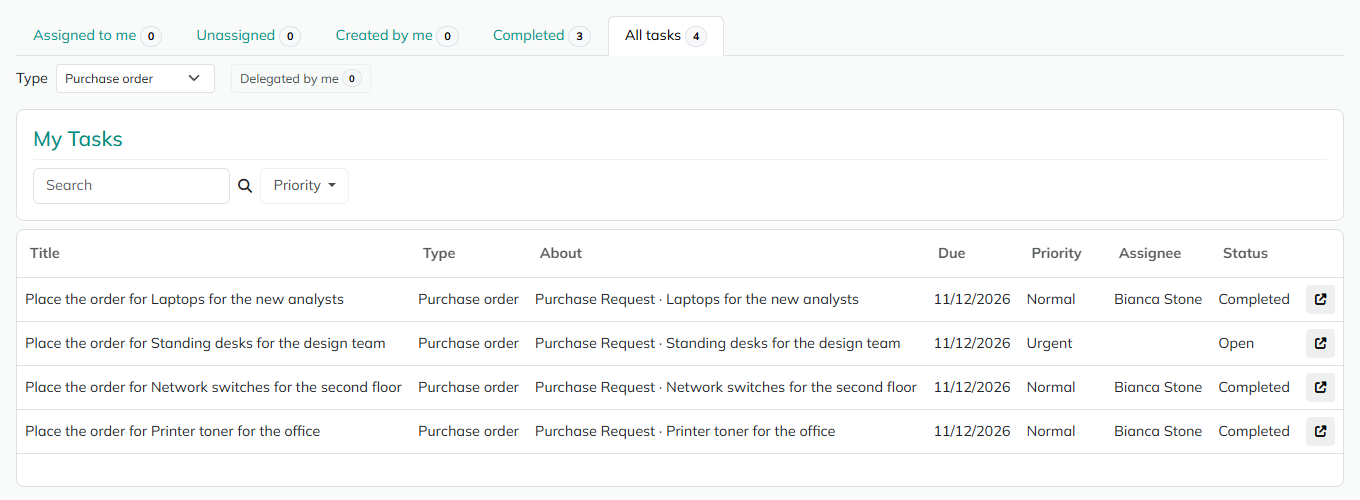
A Record's Tasks Tab
When an entity has a property of type List of Tasks, the detail page of each record gets a tab for it, for example Tasks. It lists the tasks attached to the record that you're allowed to see, with the columns of My Tasks except About, and the same row buttons. Open shows the same task panel, so the work can be done from the record. With no task, it says "No tasks about this record yet."
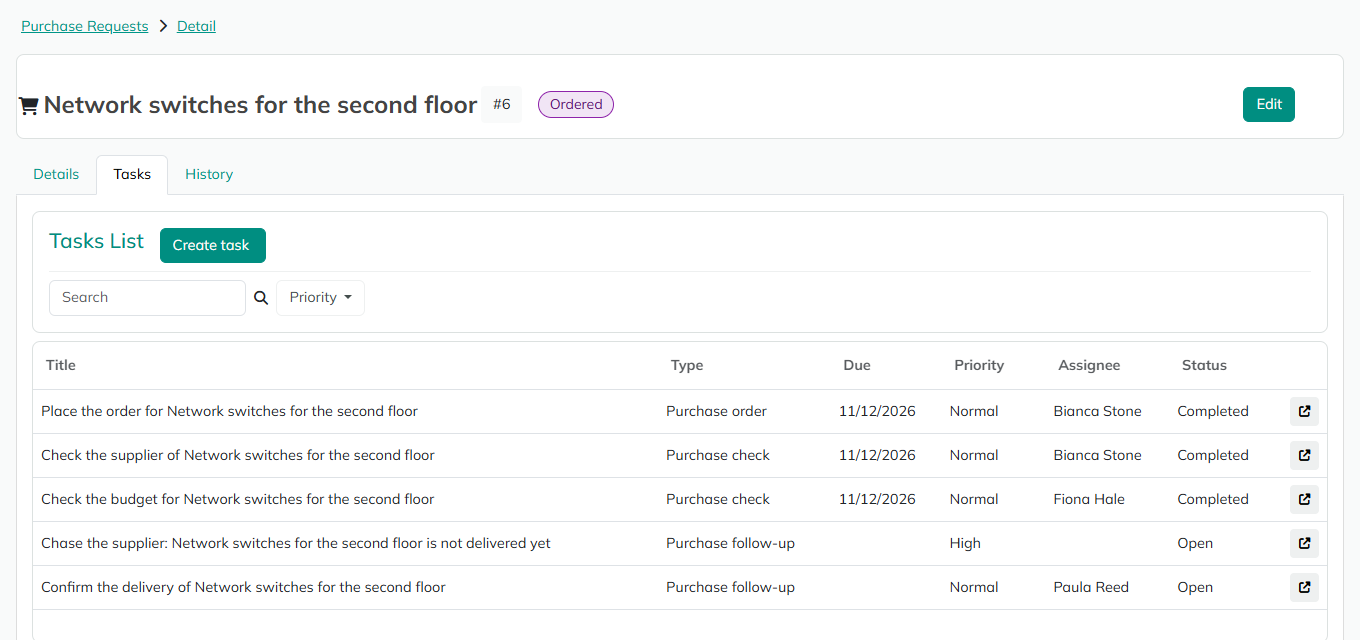
Create task opens the Create task form, for registered users. The task is attached to the record and you're its creator.
| Field | Description |
|---|---|
| Title | Required. |
| Type | Required. General at first. |
| Description | Optional. |
| Assignee | A user of the site, or Nobody: anyone in the role below can assign it to themselves. |
| Or a role whose members can assign it to themselves | A role of the site, or No role. |
| Due date | Optional. Empty: the type's due rule. |
| Priority | Normal at first. |
A task needs an assignee or a role, unless its type has candidate roles of its own.
Linking to My Tasks
My Tasks reads three values from its address:
| Query string | Does | Example |
|---|---|---|
task | Opens that task's panel when the page loads. A task you can't see, or an unknown id, shows "This task isn't available to you." | ?task=42 |
taskview | Opens a tab: AssignedToMe, AvailableToClaim (Unassigned), CreatedByMe, Completed, Administered (All tasks) or DelegatedByMe. | ?taskview=AvailableToClaim |
tasktype | Filters by a task type's key. | ?taskview=Completed&tasktype=purchase-order |
In event and escalation workflows, the [Task:Url] token is the link that opens the task on My Tasks, for example in an email. See Due Dates, Escalation and Events.
Messages
When a button is refused, the person sees why. The most common messages:
| Message | Why |
|---|---|
| This task was just assigned to someone else. | Someone else took the task first. |
| You already have this task. | Assign to me on a task that's already yours. |
| Someone else changed this task first. Reload it and try again. | The task changed after you opened it. |
| This task is completed, so you cannot cancel it. | Completed and cancelled tasks can't change. |
| Task #{id} was not found or you cannot see it. | The task doesn't exist, or you're not allowed to see it. |
| Only a member of the task's candidate roles can assign it to themselves. | You're not in the task's candidate roles. |
| Only the assignee can complete this task. | Someone else has the task. |
| This task has no candidate roles to return to. Ask a Task administrator to reassign it. | Unassign on a task without candidate roles. |
| Only a Task administrator of {type} can reassign this task. | |
| Only the creator or a Task administrator can cancel this task. | |
| Only a Task administrator can change the due date of this task. | The type doesn't let the assignee change it. |
Considerations
- App Builder rebuilds the page's own parts after some updates. When an update changes My Tasks, the next App Builder start rebuilds its tabs, list and task panel once, and changes you made to those three modules are lost. The page's place, look and permissions, and modules you added, stay. A deleted page isn't created again.
- The tabs module opens the deep link. If you remove the module with the tabs,
?task=stops opening the panel. - The task panel doesn't show a task's history or comments yet.
- All tasks has no filters by assignee or candidate role yet.
- There's no user picker yet: Reassign to, Assignee and Delegate to are lists of users.
- In the task panel, Overdue shows as soon as the due date passes. The Overdue event and the escalation steps wait for the due-date job. See Due Dates, Escalation and Events.
Revised 11/12/2026