Due Dates, Escalation and Events
Built-in Tasks is a concept feature. It's still being developed and can change before it's released. It's available only when the site's license includes the Concept feature Tasks.
Audience:
Low-code EngineersSkill Prerequisites:
Workflows,Contracts,Tokens
General Description
Tasks don't only wait. When a task's due date comes and goes, a background job marks it overdue and runs the escalation steps of its type: remind the assignee, tell the Task administrators, raise the priority, hand the task to someone else. And every change to a task raises an event, on which the type can run a workflow, for example to send a notification or to start the next step of a process.
Escalation steps and event workflows are ordinary workflows on two contracts that Tasks creates: Task Escalation and Task Event. Four ready-made workflows on these contracts come with Tasks, so you can start without writing any.
Due Dates
A task gets its due date when it's created:
- from the Create Task action, the Due of a checklist item or the Due date of the Create task form, when they set one,
- otherwise from the type's Tasks are due after rule, counted in hours or days from the task's creation,
- otherwise it has no due date.
Task administrators can change it with Change due date in the task panel or with Update Task, and so can the assignee when the type has The assignee can change the due date. A new due date:
- clears Overdue, so the task is marked overdue again if the new date passes,
- doesn't run again the escalation steps that already ran,
- moves the steps still to come, because they count from the due date,
- raises the Due date changed event.
Due dates and step offsets count calendar time, not working days.
The Due-Date Job
A background job looks after due tasks. It runs every Due-date job, every (minutes) of the Tasks settings, 5 minutes by default. On each pass it takes the open tasks that need it, earliest first, at most 200 per pass, and for each:
- The first time the task is past its due date, it marks the task Overdue and raises the Overdue event.
- When the time of the task's next escalation step has come, it runs that step. It runs at most one step per task per pass, so steps whose times have already passed run on the next passes, in order.
A step whose workflow fails is tried again on the next passes, three times in all. After the third failure the step is skipped, so the later steps still run; the failures are written to the log.
Tasks without a due date get no steps from the job. A person can still run their steps with Escalate.
The job runs on every server of the site, and a task is claimed before its step runs, so two servers never run the same step. If a server stops after a step's workflow finished but before the step was recorded, the step runs again 15 minutes later: the job prefers running a step twice to losing it.
Escalation Steps
A type's Escalation steps, in Configuration > Tasks, say what happens as the due date comes and goes. Each step runs a workflow on the Task Escalation contract at its time, under the system identity.
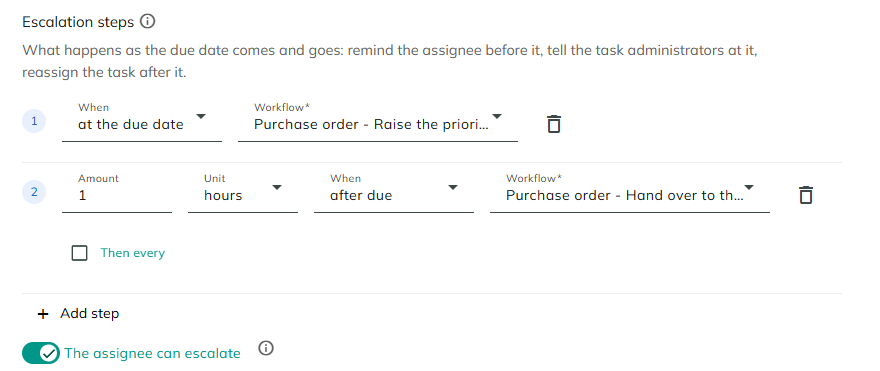
| Setting | Description |
|---|---|
| Amount and Unit | How long before or after the due date, in hours or days. Not shown for at the due date. |
| When | before due, at the due date or after due. |
| Workflow | The workflow to run. Only workflows on the Task Escalation contract are offered. A chosen workflow that's no longer on the contract shows as "A workflow not on the contract". |
| Then every | On the last step only: run it again every so many Days, "until the task is closed". |
| The assignee can escalate | Lets the assignee run the next step early with Escalate. Task administrators always can. On by default. |
Add step adds a step at the due date, or a day after the step before it. Steps run in the order of the list, one per pass of the job. A step whose time has already passed, for example on a task created close to its due date, runs on the next pass.
If no workflow is on the contract yet, the section says "No workflow implements the Task Escalation contract yet. Create one on that contract in Workflows, then choose it here." On a type without a due date rule, it reminds you: "Steps count from the due date, so they run only for tasks created with one."
The page checks the steps before you save:
| Message | Why |
|---|---|
| Escalation step {N} needs a workflow to run. | Workflow is empty. |
| Escalation step {N} comes before step {N-1}. Escalation steps must be in time order. | Put the steps in time order. Two steps at the same time run on two passes, in their order. |
| Escalation step {N} is too far from the due date: at most 3650 days before or after. | |
| The last escalation step repeats every 1 day or more. | Then every is less than 1. |
Example: Late Purchase Orders
The escalation steps of the Purchase order type in the picture above. Its tasks are due an hour after they're created, and its Task administrators are the Procurement Leads:
| Step | When | Workflow |
|---|---|---|
| 1 | at the due date | Purchase order - Raise the priority: an Update Task that sets Priority to High. |
| 2 | 1 hour after due | Purchase order - Hand over to the leads: a Reassign Task that gives the task to the Procurement Leads, and an Update Task that makes it Urgent. |
To remind people instead, a step can run one of the ready-made workflows, such as Tasks – Notify assignee before the due date or Tasks – Notify task administrators after it. Escalation workflows are on the Task Escalation contract and use the [Task] input as the task id. They run as the system, so they may edit and reassign the task although no person does it.
Escalate
Escalate in the task panel, or the Escalate Task action, runs the task's next escalation step now, with a reason. The panel names the step first, for example "Escalating runs step 1 now (at due): Purchase order - Raise the priority.", then asks Why escalate?.
- Task administrators can always escalate. The assignee can unless the type turns off The assignee can escalate.
- It isn't offered on a type without steps, or when every step has run.
- The step counts as done, so the job doesn't run it again. Later steps keep their times, counted from the due date. On a repeating last step, it runs one more time.
- A task without a due date can be escalated too, one step at a time.
- The step's workflow gets the Reason
manual, the person as EscalatedBy and the reason as Comment.
| Message | Why |
|---|---|
| Write why you're escalating this task. | Why escalate? is empty. |
| Tasks of type {type} have no escalation steps. | |
| Every escalation step of this task has already run. | |
| Only a Task administrator can escalate tasks of type {type}. | The assignee tried, and the type turns off The assignee can escalate. |
| Only the assignee or a Task administrator can escalate this task. | |
| The escalation step could not run, so nothing was escalated. Try again later, or ask a Task administrator. | The step's workflow failed. The step isn't counted as done. |
Task Events
Every change to a task raises an event after the change is saved. The type's Event workflows show the label; workflows get the value as the [Event] input.
| Event workflows label | [Event] | Raised when | [Reason] |
|---|---|---|---|
| Created | created | A task is created. | |
| Assigned | assigned | Someone gets the task. | claim for Assign to me, also when Complete assigns an unassigned task first. delegate for Delegate. reassign for Reassign, and for Assign Task on a task that had an assignee. assign for Assign Task on a task that had none. |
| Unassigned | released | The assignee gives the task back to its candidate roles. | |
| Started | started | The assignee starts the task. | |
| Due date changed | dueDateChanged | The due date changes. | |
| Overdue | overdue | The due-date job finds the task past its due date, the first time. | |
| Escalated | escalated | An escalation step ran. | due when the job ran it, manual for Escalate. |
| Completed | completed | The task is completed. [Outcome] is the outcome's key. | |
| Cancelled | cancelled | The task is cancelled. |
Changing a task's title, description or priority raises no event.
Event workflows also lists Commented, but nothing raises it yet: tasks don't have comments yet.
Event Workflows
A type's Event workflows pick, for each event, the workflow to run, or No workflow. Only workflows on the Task Event contract are offered, one per event. On a new type, Tasks – Task notification (email) is chosen for Created, Assigned, Overdue and Completed.
- The workflow runs after the change is saved. If it fails, the failure is written to the log and the change stays.
- An event workflow can call Tasks actions, which raise events of their own. Events nested more than 10 levels deep aren't dispatched, which stops workflows that trigger each other in a loop.
- If no workflow is on the contract yet, the section says "No workflow implements the Task Event contract yet. Create a workflow on that contract in Workflows, then choose it here."
Who a Workflow Runs As
| Workflow | Runs as | What its Tasks actions may do |
|---|---|---|
| Event workflow, for a change a person made | That person | What that person may do. A task created there has that person as creator. |
Event workflow on Overdue, or on Escalated with Reason due | No person: the due-date job made the change | Tasks actions are refused, because no person may see the task. Use these workflows for notifications. |
| Escalation step | The system | Anything: assign, reassign, edit, cancel. Changes show without a person, as "System". |
| Event workflow for a change an escalation step made | The system | Anything, as above. |
To change a task when it's late, for example to reassign it or raise its priority, use an escalation step, not a workflow on the Overdue event.
Task Tokens
Workflows on both contracts get the task's fields as tokens. [Task] is the task id.
| Token | Value |
|---|---|
[Task:Id], [Task:Title], [Task:Description] | The task's id, title and description. |
[Task:Type], [Task:TypeName] | The type's key and name. |
[Task:Status], [Task:StatusName] | The status key (open, inProgress, completed, cancelled) and its name. |
[Task:Outcome], [Task:OutcomeName], [Task:CompletionComment] | The outcome's key and name, and the comment given when it was completed or cancelled. |
[Task:Assignee], [Task:CandidateRoles], [Task:DelegatedBy] | The assignee's user id, the candidate roles' ids separated by commas, and the id of the user who delegated it. |
[Task:DueDate], [Task:DueDateText], [Task:Overdue] | The due date in ISO 8601, the due date as text for a message, and true or false. |
[Task:Priority] | Low, Normal, High or Urgent. |
[Task:CreatedBy], [Task:CreatedDate], [Task:CompletedBy], [Task:CompletedOn] | Who created and completed it, as user ids, and when. |
[Task:EscalationStep], [Task:Occurrence] | The last escalation step that ran, from 1, and how many times it ran. |
[Task:Url] | The link that opens the task's panel on My Tasks. Empty until the page exists. |
[Task:AssigneeName], [Task:AssigneeEmail], [Task:CreatedByName], [Task:CreatedByEmail] | The assignee's and the creator's display name and email. |
[Task:CandidateEmails] | The emails of the members of the candidate roles. |
[Task:NotifyEmails] | The assignee's email, or the candidate roles' emails while nobody has the task. |
[Task:AdministratorEmails], [Task:AdministratorRoleIds] | The emails and the role ids of the type's Task administrators. |
Emails are separated by commas. A Task Event workflow also gets [PreviousAssigneeEmail], the email of the assignee before the change. A Task Escalation workflow also gets [EscalatedByName] and [EscalationNote], a ready sentence for Escalate: "{name} escalated this task: {reason}".
The Task Event Contract
Workflows bound to a type's events implement Task Event. It's in the System namespace and has no outputs.
| Input | Type | Required | Description |
|---|---|---|---|
| Task | Integer | Yes | The id of the task. Its fields are tokens, see Task Tokens. |
| Event | Text | Yes | The event: created, assigned, released, started, dueDateChanged, overdue, escalated, completed or cancelled. |
| Reason | Text | No | For assigned: assign, claim, delegate or reassign. For escalated: due or manual. |
| Outcome | Text | No | For completed: the key of the outcome chosen. |
| User | Integer | No | The user who made the change; -1 for the system. |
| Comment | Large Text | No | The comment entered with the change, if any. |
| PreviousAssignee | Integer | No | The assignee before the change, or -1. |
The Task Escalation Contract
Workflows run by escalation steps implement Task Escalation. It's in the System namespace and has no outputs.
| Input | Type | Required | Description |
|---|---|---|---|
| Task | Integer | Yes | The id of the task. Its fields are tokens, as for Task Event. |
| Step | Integer | Yes | The position of the step in the type, starting at 1. |
| Offset | Text | No | When the step fires, for example "2 days before due" or "5 days after due, then every 7 days". |
| Occurrence | Integer | Yes | 1 on the first run of the step; 2 and up when the last step repeats. |
| DueDate | Text | No | The due date of the task, in ISO 8601. |
| Reason | Text | No | due when the job ran the step at its time; manual when a person escalated the task. |
| EscalatedBy | Integer | No | For manual: the user who escalated the task; -1 otherwise. |
| Comment | Large Text | No | For manual: why the person escalated the task. |
Tasks creates both contracts when App Builder starts, and resets their inputs to these each time. Don't add inputs to them: they're removed at the next start. For contracts in general, see Contracts.
The Ready-Made Workflows
When App Builder first sets Tasks up, it creates four workflows in the System namespace. They're ordinary workflows: open them, change them, copy them or delete them. They're created once and never written again, so your changes stay. If one of your workflows already has the name, the new one gets "(Tasks)" after it.
| Workflow | Contract | What it does |
|---|---|---|
| Tasks – Notify assignee | Task Escalation | Emails "Reminder: [Task:Title]" to the assignee, or to the members of the candidate roles while nobody has the task. |
| Tasks – Notify task administrators | Task Escalation | Emails "Escalated: [Task:Title]" to the type's Task administrators. |
| Tasks – Reassign to task administrators | Task Escalation | Gives the task to the roles of the type's Task administrators, for one of them to assign to themselves, with the comment "Escalated to the task administrators (step [Step]). [Comment]". Its Assigned event then tells them, through the type's event workflow. |
| Tasks – Task notification (email) | Task Event | On Created, emails the assignee or the candidate roles. On Assigned, emails the new assignee or the candidate roles, except for Assign to me, and on a reassignment also the previous assignee. On Overdue, emails the assignee or the candidate roles, with the Task administrators in copy. On Completed, emails the creator. |
The emails are plain text, so titles and comments typed by people can't add markup. Each ends with the [Task:Url] link. They're sent with the site's email settings. To change what the notification sends, copy Tasks – Task notification (email), change the copy and choose it in the types' Event workflows.
Licensing
Escalation steps, Escalate and event workflows need only the Concept feature Tasks. The type's pickers list the workflows on each contract, so you can choose the ready-made ones without Workflow Contracts. To make your own workflow on Task Event or Task Escalation, you choose the contract in the workflow's settings, which needs Workflow Contracts (Workflows.Contracts), part of the Enterprise plan.
Considerations
- Steps follow the type as it is now. An open task remembers how many of its type's steps already ran. If you add, remove or reorder steps while tasks are open, those tasks continue from the same position in the new list.
- Overdue shows before the job runs. The task panel shows Overdue as soon as the due date passes; the Overdue event and the steps come with the next pass of the job.
- A skipped step is only written to the log; tasks have no history yet.
- There's no Automation trigger on task events yet. Use the types' event workflows.
- There are no working days or holidays: offsets count calendar time.
Revised 11/12/2026