Task Types
Built-in Tasks is a concept feature. It's still being developed and can change before it's released. It's available only when the site's license includes the Concept feature Tasks.
Audience:
Low-code EngineersSkill Prerequisites:
Entities,Workflows
General Description
A task type is your definition of a kind of task, such as Purchase check or Purchase order. It decides what finishing a task means (its outcomes), who gets it, when it's due, what happens when it's late, and which workflows run when it changes. Every task has exactly one type.
You manage task types in Configuration > Tasks, a menu item in App Builder tagged Concept. Only App Builder admins can open it. The page has two tabs: Task types and Settings.
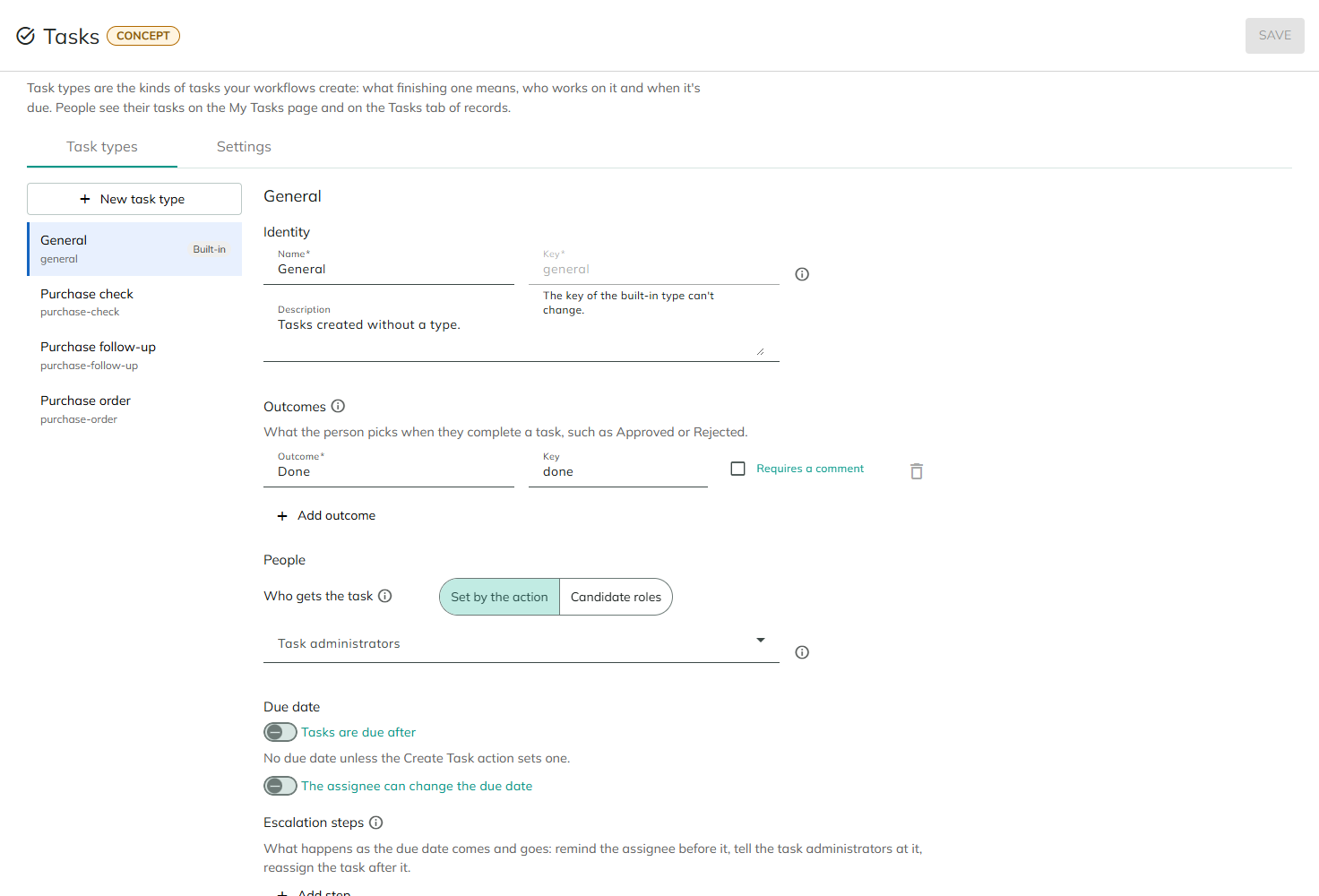
Working with Task Types
- New task type adds a type to the list, with one outcome, Done.
- Each type in the list shows its name and key. Built-in marks the General type. Not saved marks a type with changes that aren't saved yet, or that Save refused; the reason shows at the top of its settings as "Not saved: ...".
- Click a type to edit it. Each type keeps its changes while you switch between types.
- Save in the page header saves every changed type and the settings. A type that's refused keeps its changes and its message, and the others are saved anyway.
- Delete task type deletes a saved type at once, after a confirmation, together with any unsaved changes to it. A type can be deleted only while no task of the type exists; otherwise you see "{Name} cannot be deleted while {N} tasks of this type exist." For a new type that isn't saved yet, the button is Remove new task type.
- Leaving the page with unsaved changes asks "Leave without saving?" first.
Type Settings
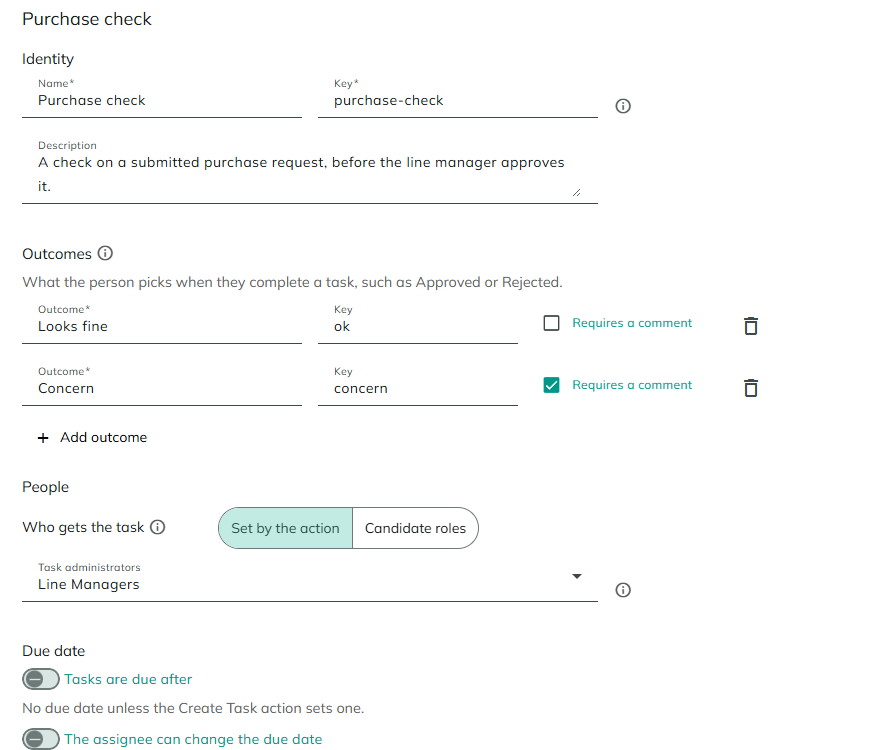
Identity
| Setting | Description | Default |
|---|---|---|
| Name | What people see in My Tasks and on the task panel. Required, at most 200 characters. | |
| Key | What workflows, filters and the Create Task action use to refer to the type. Lowercase letters, digits, dashes and dots, for example purchases.check. The key, and each part after a dot, starts with a letter or a digit. At most 100 characters, and unique. It can't change once tasks of the type exist. | Follows the name until you edit it, for example purchase-check for Purchase check. |
| Description | Optional notes about the type. |
Outcomes
What the person picks when they complete a task, such as Approved or Rejected. A type needs at least one outcome.
| Setting | Description | Default |
|---|---|---|
| Outcome | The name people see. | |
| Key | What's stored on the completed task and passed to workflows. Follows the name until you edit it. Unique within the type. | Derived from the name |
| Requires a comment | Completing with this outcome needs a comment. The outcome list in the task panel says "(needs a comment)" after its name. | Off |
With a single outcome, Complete uses it without asking. That's also what lets the Complete row button show in My Tasks.
People
| Setting | Description | Default |
|---|---|---|
| Who gets the task | Set by the action: each Create Task action (or checklist item) names the assignee or the candidate roles. Candidate roles: tasks go to the roles you pick, for one of their members to assign to themselves, unless the action names an assignee. | Set by the action |
| Candidate roles | With Candidate roles: the roles. Choose at least one. | |
| Task administrators | The roles that see every task of this type and can reassign it, cancel it and change its due date. | Empty: the Default task administrators from Settings |
With Candidate roles, a task created without candidate roles gets the type's roles, also when the action names an assignee. That assignee can then give the task back to the roles with Unassign.
Due date
| Setting | Description | Default |
|---|---|---|
| Tasks are due after | On: tasks are due an Amount of hours or days after they're created. Off: "No due date unless the Create Task action sets one." | Off; turning it on starts at 3 days |
| The assignee can change the due date | Lets the assignee use Change due date in the task panel. Task administrators always can. | Off |
A due date set by the Create Task action, or by a checklist item, replaces the type's rule. Due dates count calendar time.
Escalation steps
What happens as the due date comes and goes: remind the assignee before it, tell the task administrators at it, reassign the task after it. Each step runs a workflow on the Task Escalation contract at a time before, at or after the due date. The assignee can escalate lets the assignee run the next step early from the task panel. See Due Dates, Escalation and Events.
Attached record form
"Fields of the record the task is about that the person fills in before completing, such as a review's Score." The task panel shows these fields of the attached record above the outcome, and Complete saves them on the record before it completes the task.
| Setting | Description |
|---|---|
| Show a form of the attached record in the task panel | Turns the form on. Shown once at least one entity has a List of Tasks property; until then the section says "No entity has a List of Tasks property yet." |
| Entity | The entity whose record the form edits: one with a List of Tasks property. "The panel uses the first record of this entity the task is attached to." |
| Field | A property of that entity. Add field adds one; the form shows each field once, in this order. |
| Required to complete | The task can't be completed while the field is empty, even when the property itself is optional. For a Boolean property, the box must be checked. |
The form can show these property types: Text, Large Text, Email, Phone, Url, Number (Integer), Number (Decimal), Money, Boolean, Date, Date and Time, and Local Date and Time. It doesn't show references to other entities, State properties, Time or files.
The panel shows the form only when all of these hold:
- the task is open and attached to a record of the entity,
- the person may complete the task (as its assignee, or as a member of a candidate role while it's unassigned),
- the person may edit that record: the entity's edit permission on all records, or on their own records and the record is theirs.
Otherwise the panel shows the task's summary only. For the messages a person can see, see My Tasks.
For types with an attached record form, the Complete row button doesn't show: people complete these tasks from the task panel, where the fields are.
Event workflows
One setting per task event: the workflow that runs after that change is saved, or No workflow. Only workflows on the Task Event contract are offered. On a new type, the ready-made Tasks – Task notification (email) is chosen for Created, Assigned, Overdue and Completed. See Due Dates, Escalation and Events.
The General Type
General is built in. Its key is general and it has one outcome, Done. Tasks created without a type get it. You can change its settings, but not its key, and it can't be deleted.
Tasks Settings
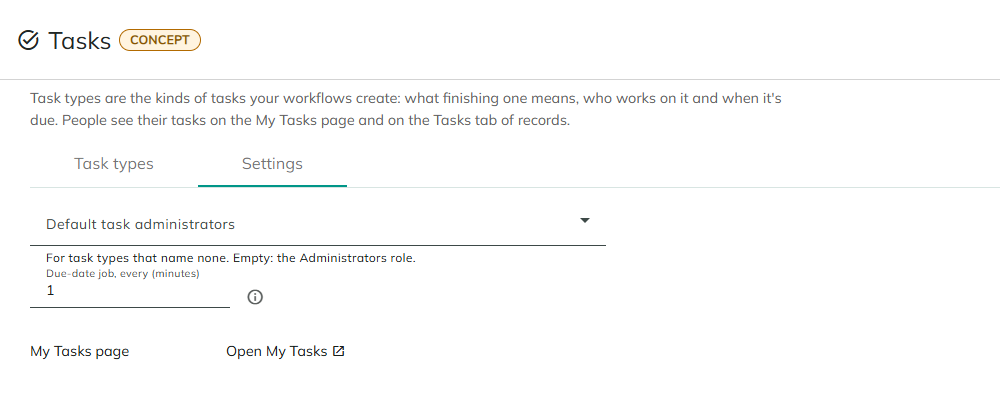
The Settings tab holds the settings for all task types.
| Setting | Description | Default |
|---|---|---|
| Default task administrators | The Task administrators of the types that name none. | Empty: the site's Administrators role |
| Due-date job, every (minutes) | How often the due-date job marks tasks overdue and runs the escalation steps that are due. At least 1. See Due Dates, Escalation and Events. | 5 |
| My Tasks page | Open My Tasks opens the page in a new tab. Before the page exists, this says "Created the next time App Builder starts." |
Messages
Save refuses a type or the settings with these messages:
| Message | Why |
|---|---|
| A task type needs a name. | Name is empty. |
| A task type needs a key. | Key is empty. |
| The key can use lowercase letters, digits, dashes and dots. The key, and each part after a dot, starts with a letter or a digit. | Key has other characters. |
| Another task type already uses the key "{key}". | Keys are unique. |
| The key cannot be changed while tasks of this type exist. | Workflows and tasks refer to the type by its key. |
| The key of the General task type cannot be changed. | |
| A task type needs at least one outcome. | |
| Every outcome needs a name and a key. | |
| Two outcomes use the key "{key}". | Outcome keys are unique within a type. |
| Choose at least one candidate role, or let the action set the assignment. | Who gets the task is Candidate roles with no role. |
| Choose the entity whose record the attached record form edits. | The attached record form has no Entity. |
| Choose at least one field for the attached record form. | |
| The attached record form shows each field once. | |
| The due-date job runs at most every minute. | Due-date job, every (minutes) is less than 1. |
The messages about escalation steps are on Due Dates, Escalation and Events.
Example: Purchase Check
A type for the checks a purchase request gets when it's submitted. The settings are an example.
| Setting | Value |
|---|---|
| Name | Purchase check |
| Key | purchase-check |
| Outcomes | Looks fine (key ok); Concern (key concern), with Requires a comment |
| Who gets the task | Set by the action: the checklist on Submitted names Buyers for one check and Finance Controllers for the other. See Checklists on Lifecycle States. |
| Task administrators | Line Managers |
| Tasks are due after | Off: the checklist gives each check its due date. |
A workflow then creates a check with the type's key:
{
    "Title": "Create Task",
    "ActionType": "PlantAnApp.Tasks.CreateTask",
    "Description": "Ask the Buyers to check the supplier",
    "Condition": null,
    "Parameters": {
        "TaskType": "purchase-check",
        "Title": "Check the supplier of [Title]",
        "CandidateRoles": "Buyers"
    }
}
For the parameters, see Create Task.
Considerations
- Task types aren't exported with the application yet. Create them on each environment with the same keys, because workflows refer to them by key.
- A Create Task action that names a deleted type fails with "There is no task type "{key}"."
- Removing or renaming an outcome doesn't change tasks already completed with it. A completed task whose outcome no longer exists shows the outcome's key.
Revised 11/12/2026