Running Transitions
Entity Lifecycle is a concept feature. It's still being developed and can change before it's released.
Audience:
Low-code EngineersSkill Prerequisites:
Entities,Workflows,Actions
General Description
A transition is the only way to change a record's state. People run transitions with the buttons on the generated pages; workflows run them with the generated transition actions; other systems call the entity's generated API. Every way runs the same checks on the server, so a button that's hidden, a workflow and an API call can't do more than the lifecycle allows.
This page explains who may run a transition, what people see on the generated pages, the messages a refused transition gives, and how to run transitions from workflows and the API. For designing the lifecycle, see Lifecycle Designer.
Who May Run a Transition
A person may run a transition when all of these hold:
| Check | Passes when |
|---|---|
| The record can be read | The user's Can Read permission covers the record, as narrowed by the state's permissions by state. See Record Owners and Can Read. |
| The record is in the right state | The record is in the transition's From state. A record with no state is in the initial state. |
| The condition holds | The transition's Condition is empty or true for the record. |
| The user is allowed | When the transition names Allowed roles, the user is in one of them; these roles need Can Read only, not Can Edit. When it names none, the user can edit the record by the entity's Permissions tab: Can Edit on All Entries, or on Own Entries for their own records. A state's permissions don't narrow this Can Edit. |
| The record is their own | Only when Only on the user's own records is checked: the user is the record's owner, or its creator on an entity without record owners. |
| The inputs are given | Every required field has a value, and a comment is given when the transition requires one. |
Superusers skip the role and own-record checks. The state, the condition and the required fields apply to everyone.
Naming roles is how you let a role run a transition without letting it edit the record. In the example, Line Managers have Can View on Purchase Requests but no Can Edit, and are named on Approve and Reject: they see the requests and their Approve and Reject buttons, but can't edit them. A role with Can Read and no Can View can run a transition through a workflow or the API, but doesn't see the entity's pages.
Once the checks pass, the transition saves the new state and its required fields, recorded as the user who ran it, without needing their edit rights.
On the Generated Pages
Plant an App updates the entity's generated pages whenever the lifecycle is saved, and when the entity is saved with Merge Changes.
Detail Page
The detail page shows the record's state as a badge next to the record's ID, in the state's color, and one button per transition before Edit.

A button shows only while the record is in the transition's From state, to the users who may run it, and only while its condition holds. A transition without required fields or a comment runs as soon as its button is clicked; the page then reloads the record, so the badge and the buttons follow the new state.
Popups
A transition with required fields, or with Comment set to Optional or Required, opens a popup instead, titled "{Transition} {Entity}", for example Reject Purchase Request.
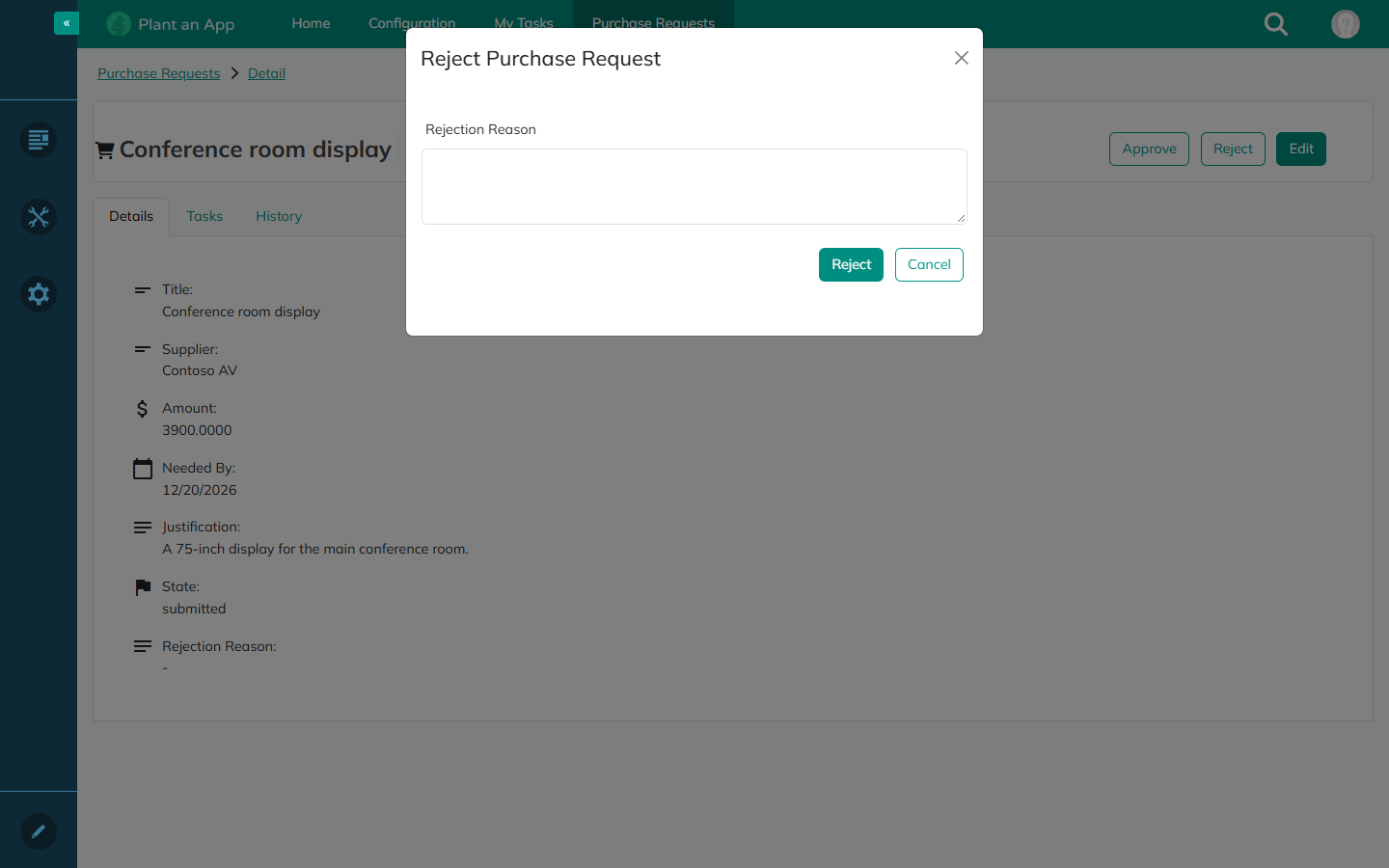
The popup shows the required fields filled in with the record's values, all required, then a Comment box when the transition asks for one. {Transition} runs the transition with the values and the comment, refreshes the page and closes the popup. Cancel closes it without checking the fields.
List Page
Each row of the entity's list page has one button per transition, shown on the same terms as on the detail page.
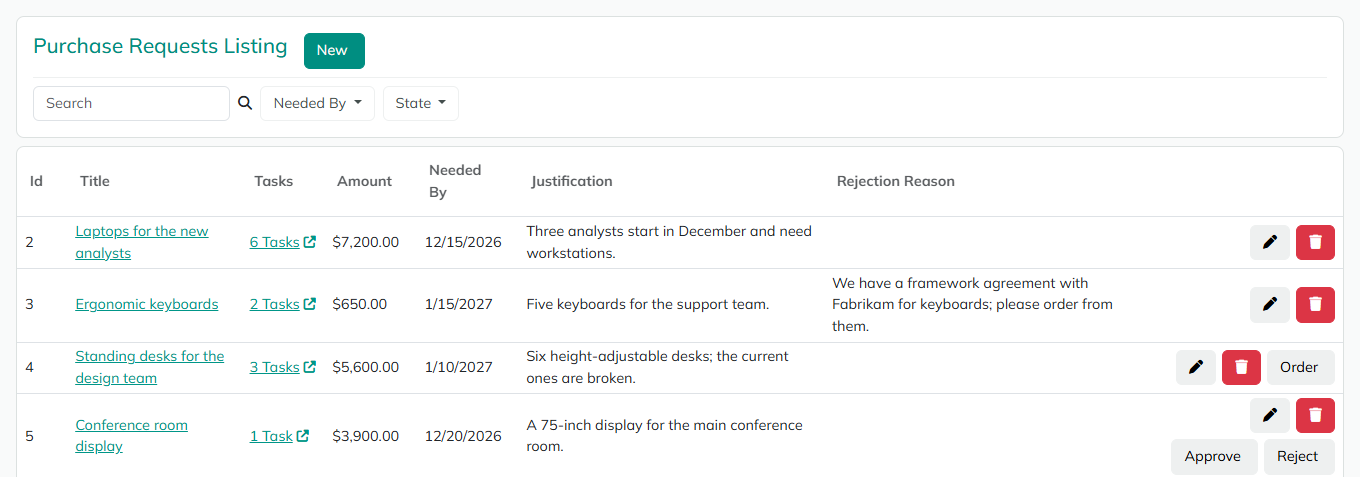
A transition without a popup asks first, like Delete: "{Transition}: move {Entity} #{id} "{record name}" from {from} to {to}?", for example "Approve: move Purchase Request #12 "Laptop for a new hire" from Submitted to Approved?", with Yes and No. A transition with a popup asks nothing more, because the popup is the confirmation.
Customizing the Buttons and Popups
On the detail page, the buttons are ordinary form buttons. Each gets an ID from the transition's name, for example Reject, or Reject2 when the form already has that ID, and keeps it after the transition is renamed. You can restyle them, but their title, show condition and actions are rewritten on each of these saves. The buttons on the list rows are removed and added again on each save, so changes you make to them aren't kept.
Each popup is its own form, "{Transition} {Entity} Form", on both the list page and the detail page. Changes you make to its fields and buttons are kept when the lifecycle is saved again. The form is removed when its transition is removed or no longer asks for fields or a comment.
Comments
The transition's Comment setting decides whether its popup asks for one:
| Setting | On the generated pages | From actions and the API |
|---|---|---|
| None (default) | No comment box. Without required fields, the button runs at once. | A comment can still be sent. |
| Optional | The popup has a Comment box that can stay empty. | A comment can be sent. |
| Required | The popup's Comment box is required. | A transition without a comment is refused with "A comment is required to {transition}." |
The comment is passed to the transition's Before and After workflows as Comment, and saved with the transition in Record History.
When a Transition Is Refused
A refused transition saves nothing. Its message is meant for the person who ran it, so it's shown to every user, not only administrators. In an action, you can handle it with the action's On Error actions instead.
| Message | Reason |
|---|---|
| {Entity} #{id} does not exist or you are not allowed to view it. | The record doesn't exist, or the user can't read it. |
| {Transition} is not available for this {Entity}. | The record isn't in the transition's From state, or its condition is false. |
| You are not allowed to {Transition} this {Entity}. | The user isn't in the transition's roles, can't edit the record, or the record isn't their own. |
| {Field} is required to move to {State}. | A required field has no value. There's one message per missing field. |
| A comment is required to {Transition}. | The transition requires a comment and none was given. |
| The message of the Before workflow's error | The Before workflow failed. |
| There is no transition named "{name}" on {State property}. | An action or API call named a transition that doesn't exist. |
| {Entity} has several State properties. Name the one to change. | The entity has more than one State property and the call didn't say which. |
| {State property} has no lifecycle yet. | The State property's lifecycle wasn't saved yet. |
Two messages come from saves outside transitions:
| Message | Reason |
|---|---|
| Use a transition to change {State property}. | A form, an Update or Partial Update action, an import or the API tried to change the state. Sending the current state, or an empty value, isn't a change and is accepted. |
| New {Entities} start in {initial state}. | A new record was given another state than the initial one. |
Transition Actions
Each transition has its own action, named "{Transition} {Entity} ({From} → {To})", for example Approve Purchase Request (Submitted → Approved). With several State properties, the name starts with the property's name. You find them in the action list with the entity's other actions, and they change when the lifecycle is saved: a removed transition's action is removed.
| Parameter | Description | Supports Tokens | Default | Required |
|---|---|---|---|---|
| {Entity} ID | The ID of the record. It must be in the state the transition starts from. | Yes | empty | Yes |
| One parameter per required field, titled with the field's name | The value to save with the new state. | Yes | empty | Yes |
| Comment | The comment to save with the transition. | Yes | empty | No |
| Output Token | A token name that receives the result. See below. | No | empty | No |
| On Error | Actions to run when the transition fails or is refused. Without them, the error message is returned. | No | [] | No |
The action saves only the state and the transition's required fields. To change other fields as well, run the entity's Partial Update action.
With an Output Token, for example Result, the action provides:
| Token | Value |
|---|---|
[Result:Transition] | The transition's name. |
[Result:FromState] | The key of the state the record left. |
[Result:ToState] | The key of the state the record entered. |
[Result:AfterWorkflowError] | The error of the After workflow, or empty. The transition is saved even when the After workflow fails. |
The entity also has a Transition {Entity} action, for example Transition Purchase Request, that names the transition when it runs. Its Transition parameter takes a transition's name or ID; a name runs the transition of that name from the record's state whose condition holds. It has a parameter for every property of the entity: a value is saved only when the transition requires that field, and an empty value keeps the record's value. With several State properties, its State property parameter names the one to change. The generated API uses this action.
Transition API
When API Access is on in the entity's General settings and the entity has transitions, its generated API has a transition method:
POST /api/{Entity}/transition, for example POST /api/PurchaseRequest/transition.
It uses JWT access, for the roles that have Can Edit on the entity and the roles any transition names. Each call still checks the transition's own rules.
| Input | Required | Description |
|---|---|---|
RecordId | Yes | The ID of the record. |
Transition | Yes | The transition's name or ID. A name runs the transition of that name from the record's state whose condition holds. |
Comment | No | The comment to save with the transition. |
StatusProperty | No | Only on an entity with several State properties: the name of the State property to change. |
One input per property, by its identifier, for example RejectionReason | No | The values of the fields the transition requires. Values for other fields are ignored, and a field left out keeps the record's value. |
The response has Id, Transition, FromState, ToState and AfterWorkflowError.
The method is rebuilt when the lifecycle is saved and when the entity is saved with Merge Changes, so its inputs follow the entity's properties. It's removed when API Access is turned off or the entity has no transitions.
Before and After Workflows
A transition can run a workflow before it's saved and another after:
- The checks in Who May Run a Transition run, and any other checks the site adds, such as open checklist tasks.
- The Before workflow runs. If it fails, the transition is refused with the message of the error, and nothing is saved. Use it to check rules the condition can't express.
- The new state and the required fields are saved, and the transition is written to Record History.
- The After workflow runs. If it fails, the transition stays done: the error is logged and returned in the
AfterWorkflowErroroutput and API field. Use it for follow-up work, such as sending a notification.
Both workflows run in the same request as the transition, so a slow Before workflow delays the button or the API call. They receive these values:
| Name | Value |
|---|---|
Record | The ID of the record. |
Transition | The transition's name. |
FromState | The key of the state the record leaves. |
ToState | The key of the state the record enters. |
User | The ID of the user who runs the transition. |
Comment | The comment, or empty. |
The Transition Contract
Every lifecycle has a workflow contract for its transitions' workflows, named "{Entity} Transition", for example Purchase Request Transition, in the entity's namespace. With several State properties, it's "{Entity} {State property} Transition". It declares the values above as typed inputs, so a workflow that implements it gets the record and the states with their details:
| Input | Type | Required | Tokens |
|---|---|---|---|
Record | The entity, for example Purchase Request | Yes | The record's fields, for example [Record:Id] and [Record:Title]. |
Transition | Lifecycle Transition | Yes | [Transition] is the name, with [Transition:Id], [Transition:From] and [Transition:To] (state keys), [Transition:FromName] and [Transition:ToName]. |
FromState | Lifecycle State | Yes | [FromState] is the key, with [FromState:Name], [FromState:Color], [FromState:IsInitial] and [FromState:IsFinal]. |
ToState | Lifecycle State | Yes | As FromState. A condition such as [ToState] == 'Approved' compares the key. |
User | Integer | Yes | The user's ID. |
Comment | Large Text | No | The comment. |
The lifecycle manages the contract. It's created when the lifecycle is first saved, renamed with the entity, and deleted with the lifecycle. Its inputs are reset every time the lifecycle is saved, so inputs you add to it are removed, and a contract you delete is created again on the next save.
Workflow contracts are part of the Enterprise plan (Workflows.Contracts). With them, the Before workflow and After workflow pickers list the workflows that implement the contract first, and the others with "(does not implement the contract)". The New workflow link under them opens the workflow editor in a new tab, on a new workflow that implements the contract. A workflow that doesn't implement it still runs, and receives the values by name.
Without workflow contracts, the pickers list every workflow. Declare workflow inputs named Record, Transition, FromState, ToState, User and Comment to use the values.
Considerations
- A condition's refusal has no reason of its own. A transition whose condition is false is refused with "{Transition} is not available for this {Entity}." To give a specific reason, check the rule in the Before workflow instead, and fail it with your message.
- Conditions read the record before the transition. A value typed in the popup can't decide whether the transition is available.
- Buttons follow the last save. The generated buttons, popups and API method are rewritten when the lifecycle is saved, and when the entity is saved with Merge Changes. After you change the Permissions tab, save the entity with Merge Changes so the buttons show to the right roles.
Revised 11/12/2026