LLM Integrations
Audience:
Low-code EngineersSkill Prerequisites:
Actions,Tokens,Connectors,Workflows
Plant an App applications can use large language models (LLMs) in two ways:
- Built-in hosted LLM integrations. Ready-made actions call a model at a cloud provider: OpenAI, Microsoft Azure OpenAI, Amazon Bedrock or Google Vertex AI. You add a connector with your account's key, and the action does the rest.
- Self-hosted models. A workflow calls any LLM server that has an HTTP API, for example a model you run yourself with Ollama or vLLM, on your own servers or in a private cloud. The data goes only to that server.
| Built-in hosted LLM integrations | Self-hosted models | |
|---|---|---|
| Which models | OpenAI and Azure OpenAI (GPT models), Amazon Bedrock (Claude, Llama, Titan), Google Vertex AI (Gemini, PaLM) | Any model on an LLM server with an HTTP API |
| Where the model runs | The provider's cloud, under your account | Wherever you choose: your servers, a private cloud, or a provider |
| How you use it | One action, such as Chat, and a connector | Server Request and two short script actions |
| Extras | Conversation history, JSON replies, workflows as tools, streaming (depending on the action) | The answer arrives in one piece |
| License | AI feature (OpenAI add-on) | Data Integration feature (for Server Request) |
Choose the built-in integrations for the quickest setup with a cloud provider. Choose a self-hosted model when data must stay in your network, when you already run an LLM server, or when you need a model the built-in actions don't support. You can use both in the same application.
Built-in Hosted LLM Integrations
The built-in actions are part of the OpenAI add-on. Despite its name, it also covers Amazon Bedrock and Google Vertex AI.
The add-on is the PlantAnApp.OpenAi package. It's installed separately and needs the AI feature in your license.
Actions
| Action | What it does | Providers |
|---|---|---|
| Chat | Sends a message to a chat model and saves the reply. Supports instructions, conversation history, JSON replies and workflows as tools. | OpenAI, Azure OpenAI |
| Aws AI Chat | Sends a message to a Claude, Llama or Titan model. Claude and Llama can run workflows as tools. | Amazon Bedrock |
| VertexAI Chat | Sends a message to a Gemini or PaLM model. | Google Vertex AI |
| Summarize Content | Summarizes text, and cuts or splits text that's too long for the model. | OpenAI, Azure OpenAI |
| Create Articles | Splits a long text into topics and writes a knowledge base article for each. | OpenAI, Azure OpenAI |
| Speech to Text (Whisper) | Transcribes an MP3 file as text, JSON or subtitles. | OpenAI |
| Count Tokens | Counts the model tokens a text uses. It runs on your server and sends nothing out. | None needed |
To compare the three chat actions, see Choosing a chat action.
Getting Started
- Create a connector for your provider in the Connectors area (click NEW), or with Add Connector: OpenAI, Microsoft Azure OpenAI, Amazon Bedrock AI or Google VertexAI. With Azure, deploy the model in Azure first. See Connectors.
- Check the connector with Test, or with Test Connector.
- Add the action to a workflow, a form button or an API endpoint. Select the connector, write the instructions and the message, and set the output token, for example
ChatReply. - Use the reply in the next actions, for example
[ChatReply].
Before You Send Data
- Data leaves your server. The provider processes everything you send under your account's terms. Don't send personal or confidential data unless your agreement with the provider allows it.
- Cost. The provider bills every token sent and received. Use Count Tokens to check the size of OpenAI requests first.
- Replies can be wrong. Check important answers before you act on them.
More in Things to know before you send data.
Self-Hosted Models
A workflow can call any LLM that's reachable through an API. The Server Request action sends an HTTP request to any server the web server can reach. The LLM server can be:
- a model you host yourself, on-premises or in a private cloud (for example with Ollama or vLLM);
- an LLM service run by your organization or a partner, inside your network;
- a provider's public API that has no built-in action.
You decide which server is called, and the data goes only to that server.
Which LLM Servers Work
Any server that the Plant an App web server can reach over HTTP or HTTPS, and that takes a JSON request.
Most servers offer an OpenAI-compatible API, with POST /v1/chat/completions. That's what the example below uses. Examples are Ollama, vLLM, the llama.cpp server and LLM gateways such as LiteLLM. Check the server's own documentation for its address and model names.
Servers with a different API work too: only the request body and the path to the answer change. Examples are Ollama's native /api/chat and Anthropic's Messages API.
CPU-only servers are possible. Use small, quantized models, and expect several seconds or more per answer. See Limits and Good Practice.
How It Works
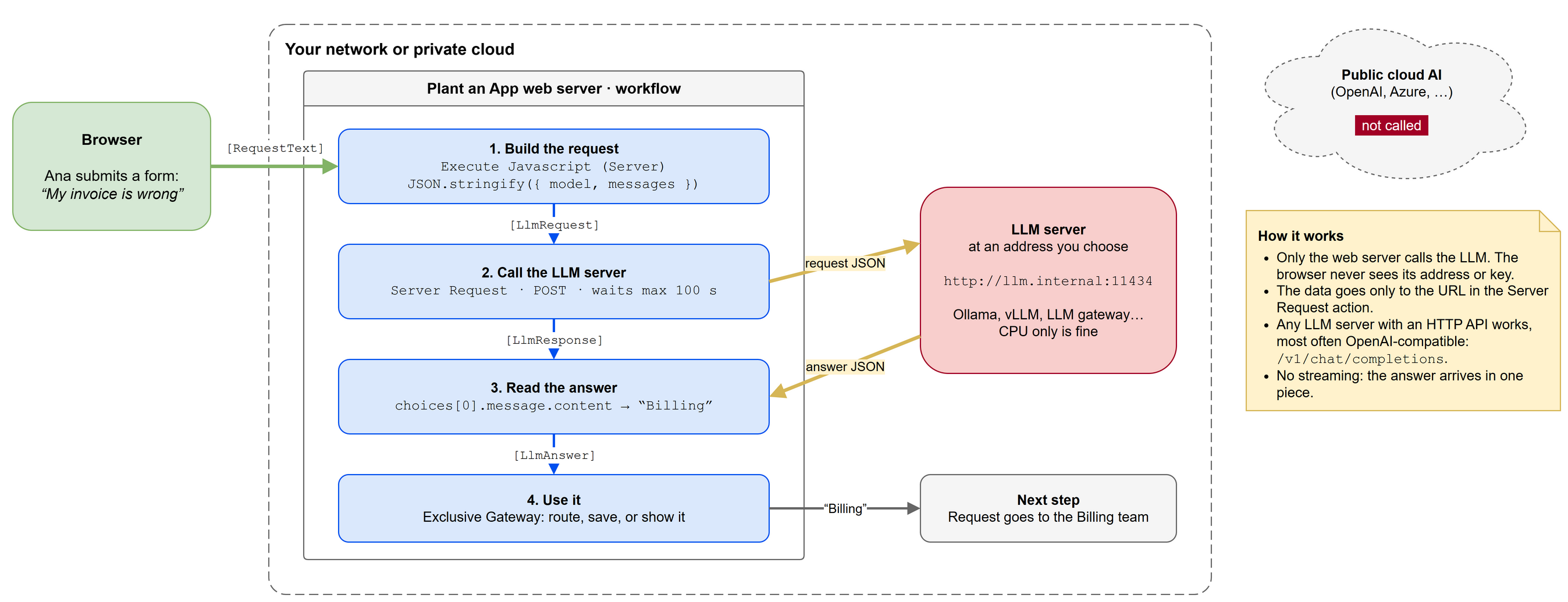
Only the web server calls the LLM. The browser never sees the LLM server's address or key.
Requirements
- The Data Integration license feature, for Server Request.
- Network access from every web server to the LLM server: firewall rules, or a proxy (Server Request can use the site's proxy settings).
- The LLM server's address, the model name, and the API key if the server needs one.
- An answer that arrives within 100 seconds. See Limits and Good Practice.
Step by Step
The example classifies an incoming request into a category. The request text is in the [RequestText] token, for example from a form field.
To import an action, see Running Examples.
1. Keep the Key Out of the Action
Put the API key in a token, for example a custom token or a token loaded from settings, and refer to it as [LlmApiKey]. Don't type the key into the action.
2. Build the Request
Server Request inserts token values into a JSON body without escaping them. A quote or a line break in the user's text would break the JSON. So build the body with Execute Javascript (Server) and JSON.stringify, which escapes everything. In the script, tokens are variables: RequestText, not [RequestText].
{
    "Title": "Execute Javascript (Server)",
    "ActionType": "ExecuteJavascript",
    "Description": "Build the LLM request",
    "Parameters": {
        "ScriptName": "Build LLM request",
        "Code": "return JSON.stringify({\n    model: 'llama3.2:3b',\n    messages: [\n        { role: 'system', content: 'Classify the request into one of: Billing, Technical, Other. Answer with the category only.' },\n        { role: 'user', content: RequestText }\n    ],\n    temperature: 0,\n    max_tokens: 20,\n    stream: false\n});",
        "OutputTokenName": "LlmRequest",
        "OnError": []
    }
}
3. Call the LLM Server
Server Request sends [LlmRequest] as the body and saves the reply in [LlmResponse]. Replace the URL with your server's address.
{
    "Title": "Server Request",
    "ActionType": "ServerRequestHttpClient",
    "Description": "Ask the LLM",
    "Parameters": {
        "URL": "http://llm.internal:11434/v1/chat/completions",
        "HttpMethod": "POST",
        "Timeout": "100",
        "Headers": [
            {
                "name": "Content-Type",
                "value": "application/json"
            },
            {
                "name": "Authorization",
                "value": "Bearer [LlmApiKey]"
            }
        ],
        "Data": "[LlmRequest]",
        "OutputTokenName": "LlmResponse",
        "IgnoreErrors": true,
        "OnError": [
            {
                "Title": "Log Error",
                "ActionType": "LogError",
                "Parameters": {
                    "Message": "LLM request failed with status [LlmResponse:ErrorCode]: [LlmResponse:ErrorResponse]"
                }
            }
        ]
    }
}
- If the server doesn't need a key, remove the
Authorizationheader. - If the URL comes from a token, for example
[LlmUrl], set Url Token Encoding to No Encoding. Otherwise the URL is encoded and the request fails. [LlmResponse:ErrorCode]is0when no response arrived, for example after the 100-second limit.
4. Read the Answer
An OpenAI-compatible reply puts the answer in choices[0].message.content. Another Execute Javascript (Server) action returns it in [LlmAnswer].
{
    "Title": "Execute Javascript (Server)",
    "ActionType": "ExecuteJavascript",
    "Description": "Read the LLM answer",
    "Parameters": {
        "ScriptName": "Read LLM answer",
        "Code": "var reply = JSON.parse(LlmResponse);\nreturn reply.choices[0].message.content.trim();",
        "OutputTokenName": "LlmAnswer",
        "OnError": []
    }
}
If you'd rather not use JavaScript, use Parse JSON Into Tokens twice: [LlmResponse] → Llm, then [Llm:choices] → Choice. The answer is [Choice:0.message.content].
5. Use the Answer
Route on [LlmAnswer] with a condition or an Exclusive Gateway, save it to an entity, or show it to the user. Check the value before using it. A model can answer with something outside the list you asked for, so always have a default branch.
Getting Structured Data (JSON) Back
To extract several fields, for example from an invoice or an email:
-
In the system message, ask for JSON only and list the fields, for example
{"invoiceNumber": "", "date": "", "total": ""}. -
If the server supports it, add
response_format: { type: 'json_object' }to the request in step 2. -
In step 4, return the parsed object:
var reply = JSON.parse(LlmResponse);return JSON.parse(reply.choices[0].message.content);With Output Token
Invoice, each first-level field becomes a token:[Invoice:invoiceNumber],[Invoice:date],[Invoice:total]. -
Check that the fields are present and valid before saving them. If parsing fails, the action's On Error runs.
Limits and Good Practice
- 100 seconds at most. Server Request waits at most 100 seconds for the answer. A higher Timeout doesn't extend this. Keep calls short: use small models and short prompts, and set
max_tokens. This matters most on CPU. - Don't make users wait. Run LLM calls in Execute Actions Asynchronously or an Automation job, and save the result. The 100-second limit still applies there.
- No streaming. The answer arrives in one piece. Show a "processing" state, or save the result and notify the user.
- Load. A CPU server answers few requests at the same time. For batches, process items one by one in an Automation job instead of in parallel.
- Never write tokens straight into the JSON body. Always build it as in step 2.
- Keep a person in the loop for decisions that matter. Treat the answer as a suggestion: route it for review, or log it with the input.
Security and Data Protection
- You choose where data goes. The data is sent only to the URL in the action. To keep data out of the public cloud, use an address inside your network or private cloud.
- Protect the LLM server. Keep it on the internal network, or put it behind a reverse proxy with HTTPS and an API key. Never expose an LLM server to the internet without authentication.
- Mutual TLS is possible with Server Request's Client Certificate option (Enterprise). See Client certificates.
- Keys belong in tokens, not in the action (step 1).
- Logs. The error message in step 3 includes the server's response. Don't log prompts or answers that contain personal data unless that's allowed.
Keeping AI Out of the Public Cloud
The built-in actions always call their provider's cloud. They can't be pointed at a self-hosted model. The same applies to the Knowledge AI Assistant (powered by Bazinga.AI) and the Chat Widget.
To keep an installation free of public cloud AI:
- use only the Self-Hosted Models route, with an LLM server in your network;
- don't configure the OpenAI add-on's connectors;
- don't enable the Knowledge AI Assistant.
Related
- OpenAI add-on
- Connectors
- Server Request
- Execute Javascript (Server)
- Parse JSON Into Tokens
- Execute Actions Asynchronously
- Automation
Revised 11/12/2026