Forms 2.0 - Let Users Add Repeating Entries
This page is preliminary and subject to change as Forms 2.0 continues to be developed.
This guide continues the contact form from Populate a Dropdown from a Data Source. We'll let a person provide as many contact phone numbers as they need - each one tagged with a type like Home, Office, Mobile, or Fax - using a Repeater.
Add the Repeater
- Open the Form Builder and go to the Build tab.
- Drag a Repeater onto the Canvas and set its Label (and Name) to
Phone Numbers. - Drag two fields inside the Repeater - these make up the template repeated for each entry:
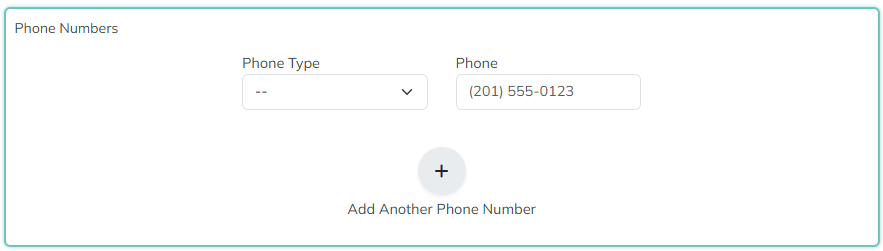
Arrange and configure the Repeater
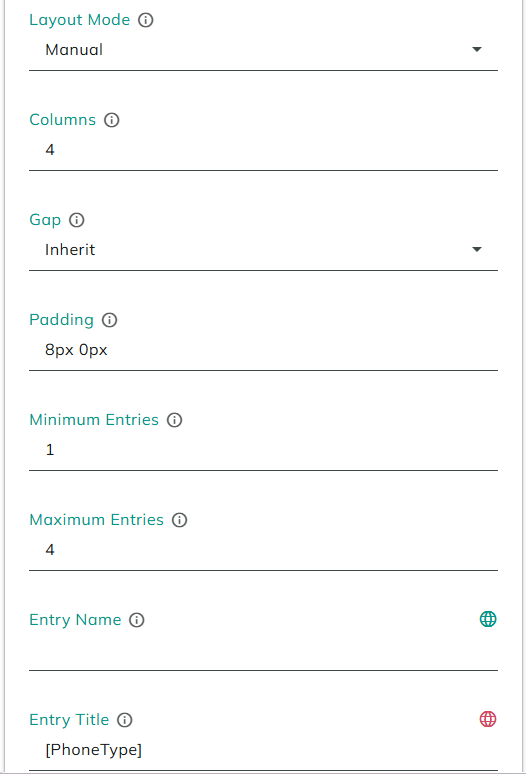
The Repeater's own settings control both the layout of each entry and how many entries are allowed:
- Set Layout Mode to
Manual, then resize and position Phone Type and Phone Number so they sit side by side within each entry, instead of stacked vertically. - Set Minimum Entries to
1, so every submission includes at least one phone number. - Set Maximum Entries to
4, so a person can add up to four. - Set Entry Title to the Phone Type field's token (for example
[PhoneType]), so each entry's collapsed header updates to show its selected type as the person fills it in. - Set Add Button Title to
Add another phone number.
Click Save, return to the live form, and refresh.
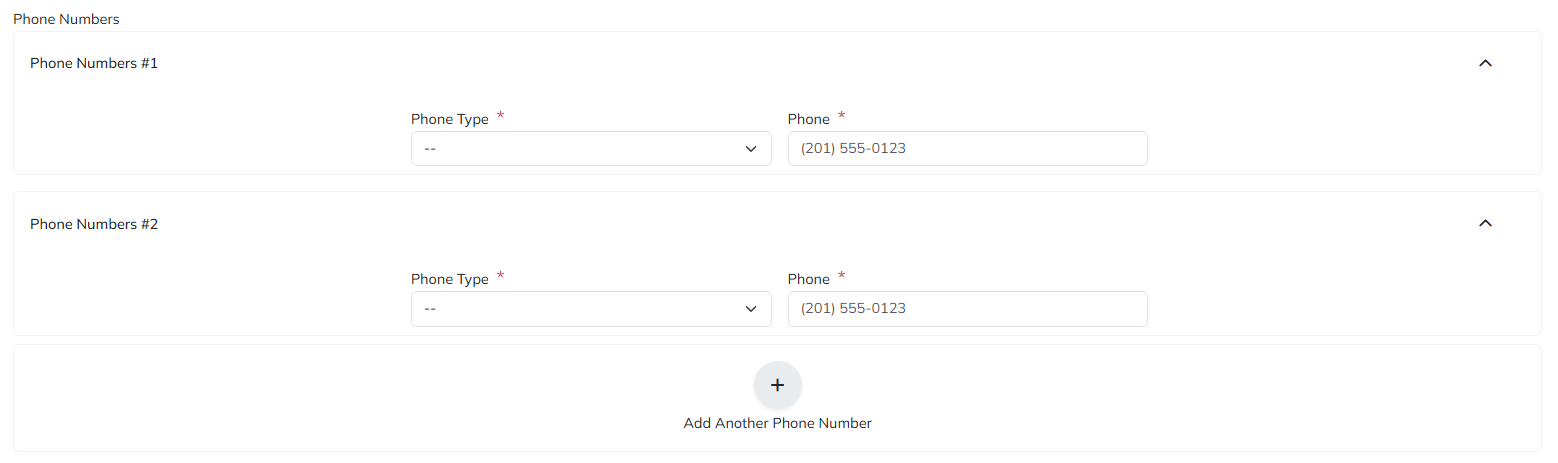
An entry's header uses Entry Name until Entry Title's tokens have data, then switches to Entry Title. Here, an entry starts out with a generic name and relabels itself to Home, Office, and so on as soon as a Phone Type is picked.
Try it out: pick a Phone Type and notice the entry's header update to match. Click Add another phone number to add a second entry, pick a different type, and both entries' headers now reflect their own type. Each entry can collapse down to just its header - useful once a form has several long entries - and expand again to edit it. Add entries until you reach four; the button no longer adds new entries past that, since it's the configured Maximum Entries.
Add Field Validators
A Repeater itself doesn't support Field Validators - Minimum Entries and Maximum Entries are how you constrain how many entries there are - but the fields inside each entry support validators like any other field:
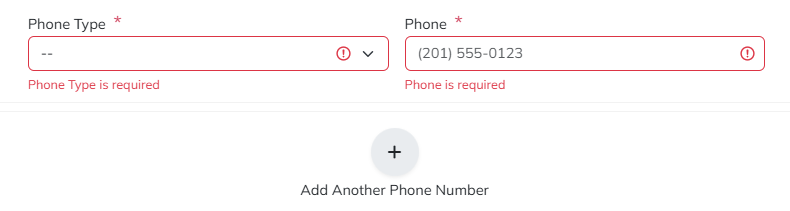
- Click into an entry, select Phone Type, and add a Required Field validator.
- Select Phone Number and add a Required Field validator.
Click Save, return to the live form, and refresh. Picking a Phone Type alone doesn't satisfy Phone Number's own requirement - each field validates independently. The Phone field also rejects a value that isn't a valid, properly formatted phone number for the selected country, in addition to the Required Field check. If you add an entry you don't want, use its delete icon to remove that entry individually, subject to Minimum Entries.
Include the repeated data in the confirmation email
The Repeater returns its entries as a token, alongside the individual field tokens used elsewhere on this form. Open the Repeater's help/tokens reference to see them - the main one is [PhoneNumbers], a JSON array containing every current entry.
- Click the Save button and go to its On Click Handler.
- Edit the Send Email action from Create My First Form, and add
[PhoneNumbers]to the email body, alongside the existing message content.
A Repeater's entries are exposed as JSON rather than a single flat token, because the number of entries - and the fields inside each one - can vary from submission to submission. JSON reliably captures that whole structure in one value. Working with that JSON programmatically (for example, to reformat it or write each entry to its own record) is a more advanced topic covered elsewhere.
Click Save, return to the live form, and refresh.
Test it live
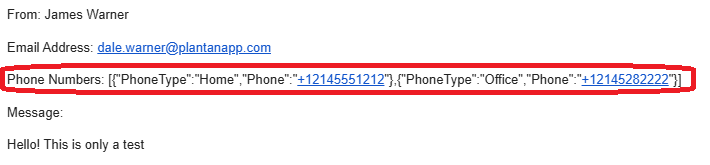
Fill in the form with a few phone numbers - for example a Home, an Office, and a second Office number - along with the rest of the required fields, and click Save. The email received includes a Phone Numbers value containing the JSON array of every entry you added, each with its Phone Type and Phone Number.
Summary
- A Repeater holds a template of fields and repeats it for as many entries as the person needs, within Minimum Entries and Maximum Entries.
- Entry Title can reference tokens from the fields inside the entry, so each entry's collapsed header reflects its own data.
- Fields inside a Repeater keep their own Field Validators; the Repeater itself is constrained by entry count instead.
- A Repeater's contents are available as a single JSON array token (for example
[PhoneNumbers]), which can be dropped into actions like Send Email just like any other token.