Designing BPMN 2.0 Workflows
BPMN 2.0 workflows are a concept feature. They're still being developed and can change before they're released. They're available only when the site's license includes the Concept feature Bpmn2.
Audience:
Low-code EngineersSkill Prerequisites:
Workflows,Actions,Conditions
General Description
A BPMN 2.0 workflow is edited in the same editor as any workflow, in the Process tab. What changes is the context pad: the buttons that appear next to a selected element. On a BPMN 2.0 workflow they're arranged in rows by kind, and they add the elements the BPMN 2.0 engine runs. Workflows on the current engine keep today's context pad.
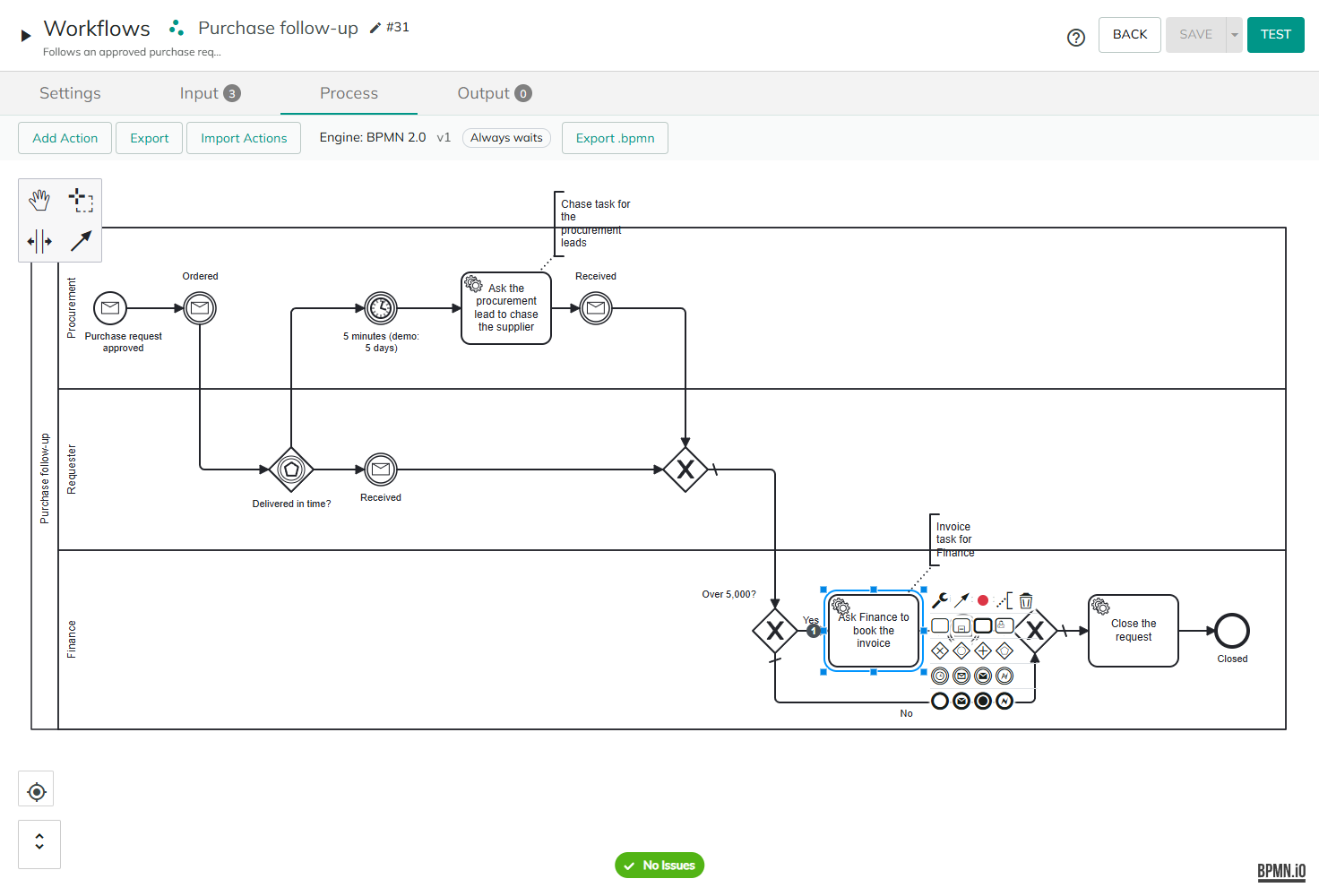
| Row | Entries |
|---|---|
| Settings | The selected element's settings, such as Action Settings, Task Settings, Error Code, Timer Settings, Event Settings, Choose Workflow, What Comes Back and Path Order; then Connect, or Make Default Flow on a flow; Collapse Subprocess or Expand Subprocess; Add Comment; remove. On a saved workflow, also Add breakpoint (see Testing and Debugging). |
| Activities | Add Action, Add Subprocess, Add Call Activity, Add User Task. |
| Gateways | Add Exclusive Gateway, Add Inclusive Gateway, Add Parallel Gateway, Add Event-Based Gateway. |
| Events | Add Timer, Add Wait for Event, Add Raise Event, Add Error. |
| Ends | Add End Event (ends this path; other branches go on), Add Raise Event and End, Add Terminate End Event (ends the whole run, all branches), Add Error End Event. |
| Pool and lanes | Add Pool (to divide the workflow into lanes) on the start event; the lane entries on a pool or a lane. |
A row shows only the entries that fit the selected element. The entries that wait (Add Timer, Add Wait for Event, Add Event-Based Gateway, Add User Task) appear only at the top level of the workflow, not inside a subprocess.
Double-click an element to open its settings: a task's action, a call activity's or user task's action, a subprocess's What Comes Back, an error event's code, a timer's or an event's settings, a gateway's Path Order, or the condition of a flow that leaves a gateway.
Tasks and actions
A task holds one action, as on today's diagram. Add Action adds a task and opens the list of actions; Action Settings, or a double-click, opens the action's settings. A task's action reads and sets the workflow's tokens, and can use flow actions inside it, such as conditions and loops over a list.
Import Actions adds the imported actions as a chain of tasks, one action each, connected in their order after the selected element.
To group several small steps into one box, use a subprocess.
A task's action never waits. Anything that waits is drawn on the diagram: a timer, a wait for an event, a user task, or a call activity to a workflow that waits. An Execute action inside a task starts a workflow that waits and goes on without it.
Connecting elements and loops
On a BPMN 2.0 workflow, Connect joins any element to any other:
- Loops. Draw a flow back to an earlier element, for example from an error event back to the task, to try again. A run stops with
The workflow stopped at "Check delivery" after 10000 steps. Check for a loop that never exits.when it enters 10,000 elements without ending or waiting. - Merges anywhere. An element can have several incoming flows. A task, subprocess or call activity runs again for each path that reaches it.
- One way out. A task, subprocess, call activity or event has one outgoing flow. To branch, use a gateway.
Gateways
| Gateway | As a split | As a merge |
|---|---|---|
| Exclusive (Split) | Tries the conditions on its outgoing flows in their path order and takes the first that's true. Otherwise it takes the default flow. Without a default flow, the run fails with None of the conditions on the flows leaving "Amount check" is true, and it has no default flow. | Goes on with each path that arrives. |
| Inclusive | Takes every flow whose condition is true, in path order, else the default flow, else the run fails. The paths it takes run one after another on the same tokens: each sees what the paths before it set, and when two set the same token, the later one wins. | Waits for every incoming path that can still arrive, then goes on once. |
| Parallel | Runs every path at the same time, each on its own copy of the tokens. Its flows have no conditions. Needs Parallelization, part of the Enterprise plan. | Waits for every path, then copies back what each one changed. Every path of a parallel split must reach its join, or the run fails at the join. Nothing can wait on a path of a parallel gateway. |
| Event-based | Waits for whichever of its timers and events comes first. See Waiting for the first of several. |
A gateway can merge and split at once.
Conditions are on the flows that leave an exclusive or inclusive gateway, written as on a Split today. Double-click a flow to edit its condition. Every flow that leaves the gateway needs a condition, except the default flow.
The default flow is taken when no condition is true. Select a flow that leaves the gateway and choose Make Default Flow. It can't have a condition.
Path order. The editor numbers each path of an exclusive or inclusive gateway on the diagram: 1, 2, 3. Path Order on the gateway's context pad, or a double-click on it, opens the list of its paths, with the element each one goes to and its condition, and Move up and Move down. The default path is listed last, without a number. A new path goes last. Changing the order changes which condition is tried first, so it gives the workflow a new version.
Subprocesses
Add Subprocess adds a subprocess with its own start event. Add steps inside it as on the main diagram; it needs an end event of its own. Collapse Subprocess turns it into a single box; the icon at the bottom of a collapsed subprocess opens its steps, and the breadcrumbs at the top lead back. Expand Subprocess shows the steps on the main diagram again.
The steps inside read every token and list of the workflow, but what they set stays inside unless it comes back. What Comes Back, or a double-click on the subprocess, sets what does:
| Option | What comes back |
|---|---|
| Only these outputs | The tokens and lists you list. When an error leaves the subprocess, everything it set comes back, so the error's path sees it. A new subprocess starts with this option and an empty list. |
| Everything | Every token set and every list created inside, also after an error, as if the steps weren't grouped. |
With an empty list, the dialog fills in the tokens and lists that are set inside the subprocess and used after it. Check the list: tokens and lists set or read by code, or inside an action's own action lists, aren't found. The editor warns when a token is set inside, used after it and not listed, for example "Total" is set inside the subprocess "Collect quotes" and used after it, but "What comes back" doesn't list it, so it won't come back.
A list is shared, not copied: rows an action changes in an existing list show after the subprocess anyway. Actions that append to a list, such as Load From SQL, replace it with a new list, so list it when the steps after the subprocess need what was appended.
A subprocess never waits. Timers, waits for an event, event-based gateways and user tasks can't be inside a subprocess, and only error events go on its border. To group steps that wait, use a call activity at the top level. A terminate end event inside a subprocess ends only the subprocess.
Call activities
A call activity calls another workflow, on either engine, and continues when it ends.
- Select Add Call Activity. The list of actions opens with only the workflows' Execute actions.
- Choose the workflow to call. The call activity takes the workflow's name, and the Execute action's settings open. Each input starts as the token of the same name, such as
[PurchaseRequestId], and each output goes to the token of the same name. Change them as in any Execute action. - Action Settings, or a double-click, opens these settings again. Choose Workflow calls another workflow instead.
If you close the list without choosing, the call activity is removed. When the workflow calls itself, the editor reminds you that the calls stop with an error after 20 levels.
- Errors. An error the called workflow doesn't handle reaches the call activity's error events, by its code, with the called workflow's own message in
[ExceptionMessage]. - Depth. Calls more than 20 levels deep fail with
The call activity "Next level" would call workflows more than 20 levels deep. Check for a workflow that calls itself. - A deleted workflow. A call to a workflow that no longer exists fails when the run reaches it, naming the call activity and the workflow.
- A workflow that waits. At the top level, the call activity waits until the called workflow's run ends. Inside a subprocess, it starts the run and goes on. See Waiting for a called workflow.
A call activity holds exactly one action, the Execute action of the workflow it calls. Otherwise it's refused with The call activity "Check budget" must hold exactly one action, the Execute action of the workflow it calls.
Errors
An error event on the border of a task, user task, subprocess or call activity catches an error that the element doesn't handle, and the run continues along the event's path instead. The path can go anywhere: back to the task to try again, to a person, or to an error end event.
- Select the element and choose Add Error. The error dialog opens.
- Choose Every error the task doesn't handle, or Only the error with this code and enter the Error code, such as
PAYMENT_DECLINED, and an optional Name. - Connect the error event to what happens after the error.
After an error event catches an error, [ExceptionCode] and [ExceptionMessage] hold its code and message, and [Exception], [ExceptionType] and [ExceptionStack] are set as in an On Error list.
Where the error goes. An action's own On Error handles the error first. If the error leaves the task's actions, it goes to the task's error event with the same code, then to one that catches every error, then to the error events of the subprocesses around the task. Otherwise the run fails. Codes match exactly, including case. An error that an action raises by itself has no code, so only an event that catches every error catches it.
Raising an error. Use the Throw Error action in a task, with a code and a message. Or end a path with Add Error End Event, which opens the same dialog for the code it raises. An error end event inside a subprocess raises the error to the subprocess's border.
When an error leaves a subprocess, its other paths stop at their next element. Actions that already ran keep their effects. Errors the engine raises itself, such as no true condition at an exclusive gateway or the step limit, aren't caught by error events. An error event always interrupts its task.
An error that nothing catches fails the run with a message that says where it was raised, for example "Check supplier" raised the error "SUPPLIER_UNKNOWN", and no error event caught it: Fabrikam isn't an approved supplier.
End events
| Entry | What it does |
|---|---|
| Add End Event (ends this path; other branches go on) | Ends its path. The run ends when every path has ended. |
| Add Terminate End Event (ends the whole run, all branches) | Ends the whole run, named Terminate on the diagram. Inside a subprocess, it ends only the subprocess. |
| Add Error End Event | Raises an error with a code. See Errors. |
| Add Raise Event and End | Raises an event, then ends its path. See Raising an event. |
Pools and lanes
Pools and lanes show who does what. They're drawing only: they don't assign tasks, and the engine and the version ignore them.
- Add Pool (to divide the workflow into lanes) on the start event draws one pool around the whole workflow. Click to place it. It's offered while the workflow has no pool.
- On a pool or a lane: Add lane above, Divide into two lanes, Divide into three lanes and Add lane below. A lane can be deleted; its steps stay in the pool.
- A pool can't be deleted once drawn, because deleting it would delete every step with it.
Lists as inputs and outputs
With the Concept feature Bpmn2, a workflow's inputs and outputs can be of type List (context list): a list such as one that Load From SQL fills, with whatever columns it has. This works on both engines.
- Input. The workflow gets the caller's list itself, not a copy, under the input's name, or an empty list when none is passed. A List input has no default value.
- Output. In the Outputs tab, set Type to List (context list). Its value is the name of a list of the run; empty means the list named as the output.
- The Execute action. A List field shows as
Orders (list)and takes the name of a list of the caller. - Test. Enter a List input as JSON rows, an array of objects, for example
[{"Name": "A"}, {"Name": "B"}]. A List output shows as JSON rows.
Contracts don't offer the List type. When a run waits, its lists are saved as copies, so from then on the caller's list and the run's list are separate.
Checks on save
The editor checks the diagram as you draw and marks the elements that can't run, with the reason on hover. When you save, the server checks it again and refuses a diagram that can't run, with The workflow can't run on the BPMN 2.0 engine: and one line for each problem. Some of the checks:
| Problem | Message (example) |
|---|---|
| An element the engine doesn't run | "Approve" can't run yet: the BPMN 2.0 engine doesn't run script tasks in this version. |
| No start event, or several | The diagram has no start event. |
| No end event | The diagram has no end event. |
| A step nothing leads to | "Notify" has no incoming flow, so it never runs. |
| A step with no way out | "Notify" has no outgoing flow. Connect it to the next step or to an end event. |
| Two flows out of a task | "Notify" has 2 outgoing flows. Use a Split, an inclusive or a parallel gateway to branch. |
| A flow out of a gateway with no condition | A flow leaving "Amount check" (to "Book invoice") has no condition. Give it a condition or make it the default flow. |
| A condition on a parallel gateway's flow | The flow leaving the parallel gateway "Split" has a condition. Parallel branches always run; remove the condition or use a Split. |
| A loop with no way out | No end event can be reached from "Check delivery". |
| A wait inside a subprocess | "Wait 5 minutes" can't be inside the subprocess "Collect quotes": a subprocess never waits. To group steps that wait, use a call activity at the top level of the workflow. |
| A wait on a parallel path | "Wait 5 minutes" is on a branch of the parallel gateway "Split", where nothing can wait yet. Move it before the parallel gateway or after its join. |
| An event without a name | "Wait for it" has no event name. Name the event it waits for, raises or starts on. |
| A timer without a time | The timer "Reminder" has no time set. Set it to wait After a duration or until At a moment. |
| A user task without its action | The user task "Book the invoice" must hold exactly one action, the Create task action of the task it waits for, with an Output Token to keep the task in. |
The editor also warns, without stopping the save, about a token or list set inside a subprocess and used after it but not listed in What Comes Back, and about a call activity inside a subprocess to a workflow that can wait.
Exporting the diagram
Export .bpmn in the engine bar downloads the saved diagram as a .bpmn file that other BPMN tools, such as Camunda Modeler or bpmn.io, open. Save the workflow first: the export is the saved diagram.
The file is valid BPMN 2.0. It holds the diagram and the settings of its elements, such as timers, events and what comes back from a subprocess, but not the actions: a task's action isn't in the file. A call activity names the Execute action it holds, such as PlantAnApp.ExecuteWorkflow.42, so a reader sees which workflow it calls.
To move a BPMN 2.0 workflow to another site, use the workflow's usual export and import. A site without BPMN 2.0 workflows can't import it.
Considerations
- One action per task. To group steps, draw them in a subprocess. There's no command to group existing steps into a subprocess yet.
- Events aren't checked across workflows. The editor doesn't tell you when no workflow raises an event that a workflow waits for, or the other way round. Check the names yourself.
- The
.bpmnfile goes one way. Plant an App doesn't open.bpmnfiles made in other tools. - Undo and redo are off in the workflow editor, as for every workflow.
Revised 11/12/2026