Upgrading a Workflow to BPMN 2.0
BPMN 2.0 workflows are a concept feature. They're still being developed and can change before they're released. They're available only when the site's license includes the Concept feature Bpmn2.
Audience:
Low-code EngineersSkill Prerequisites:
Workflows
General Description
Every workflow starts on the current engine, including the ones you create now. The upgrade moves one workflow to the BPMN 2.0 engine, so the server runs its diagram and you can add what the current engine can't run: loops, error paths, subprocesses, call activities and waits. See BPMN 2.0 Workflows.
What stays the same:
- the workflow's name, inputs, outputs, contract and permissions;
- its Execute action, so its callers don't change;
- what it does: each task keeps the action it runs today, and the workflow still finishes in the call.
The upgrade is one-way. There's no command to move a workflow back to the current engine.
Before you upgrade
- The license must include the Concept feature Bpmn2. Without it, the editor doesn't show the engine bar.
- Save the workflow. The upgrade works on the saved workflow. With unsaved changes, it says
Save the workflow before upgrading it to BPMN 2.0. - Try a copy first. Clone the workflow, upgrade the copy, run both with the same inputs and compare the outputs.
- System workflows stay on the current engine.
Upgrading
- Open the workflow in App Builder › Workflows and go to the Process tab.
- In the engine bar above the diagram, select Upgrade to BPMN 2.0.
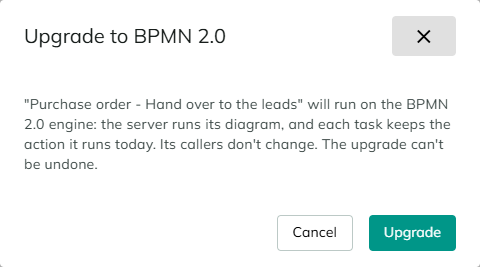
- Read the confirmation: the workflow will run on the BPMN 2.0 engine, the server runs its diagram, each task keeps the action it runs today, its callers don't change, and the upgrade can't be undone.
- Select Upgrade.
When it's done, the editor says The workflow now runs on BPMN 2.0. and reloads. The engine bar now shows BPMN 2.0, and the context pad offers the BPMN 2.0 elements. If the upgrade changed the diagram, the editor lists the changes under The workflow now runs on BPMN 2.0. Review these changes:. Read them, then test the workflow.
What the upgrade changes
| On the current engine | After the upgrade |
|---|---|
| A task holding an action | The same task, with the same action. A task drawn with no type becomes a service task, and the editor notes it. |
| A Split and its conditions | An exclusive gateway, with each condition on its outgoing flow, tried in the order the Split tried them. You can see and change that order in Path Order. An empty condition becomes true. |
| A Split with no condition that's always true | Today, when no condition is true, the workflow skips the Split. On the BPMN 2.0 engine, a gateway with no true condition and no default flow fails the run. So the upgrade adds a default flow from the Split to its Merge, and notes it: Added a default flow from "Amount check" to "Merge": when no condition is true, the workflow skips the Split, as it did before. |
| A condition on the diagram that differs from the one saved in the Split's action | The saved condition is kept, since that's the one that ran, and the editor notes the difference. |
| A parallel gateway | The same parallel gateway. Its branches still run at the same time and are merged in the same order. |
The actions move as they are, with their settings, conditions and On Error lists. The upgrade is a save, so version control records it.
When the upgrade is refused
The upgrade refuses a workflow whose saved actions don't match its diagram, and changes nothing. It shows The workflow can't be upgraded to the BPMN 2.0 engine. Nothing was changed. and the reasons, for example:
| Message | What to do |
|---|---|
The task "Notify" on the diagram has no saved action. Open the workflow, save it, and upgrade again. | Open, save, and upgrade again. The same goes for a Split or parallel gateway without a saved action. |
The action "Send email" (#215) isn't drawn on the diagram. | The action is saved, but no element on the diagram holds it. Check the workflow's diagram and actions, save it, and upgrade again. |
The Split "Amount check" is disabled or has a condition of its own, which the BPMN 2.0 engine has no place for. Remove it and try again. | Enable the Split, or remove its own condition, and save. |
The Split "Amount check" has a default flow on the diagram, which its saved action doesn't use. | Remove the default flow from the diagram, save, and upgrade again. |
A branch of the Split "Amount check" starts with the action "Send email" (#215), but no flow leaves the Split towards it on the diagram. | Connect the branch on the diagram, save, and upgrade again. |
System workflows stay on the current engine. | System workflows can't be upgraded. |
The workflow already runs on the BPMN 2.0 engine. | Nothing to do. |
The workflow's actions are corrupted. followed by the reason | Fix the workflow first. |
Going back
The upgrade can't be undone from the editor. A workflow's engine is part of what it saves, so:
- Version control. Restoring a version of the workflow saved before the upgrade puts it back on the current engine, as that version was.
- Import. Importing a copy of the workflow exported before the upgrade does the same.
- Clone. A clone of a BPMN 2.0 workflow is a BPMN 2.0 workflow.
After the upgrade
Right after the upgrade, the workflow behaves as it did. Its wait behavior is Finishes in the call, so its Execute action gives back its outputs, as before. From there:
- Add a wait, and its Execute action changes for every caller. The editor warns you and lists the callers when you save. See Calling a workflow that waits.
- Test it with the Test button to see the path it takes. See Testing and Debugging.
- A task holds one action. To group small steps, use a subprocess.
Considerations
- One workflow at a time. There's no upgrade of several workflows at once.
- Older sites refuse it. A BPMN 2.0 workflow exported from this site can't be imported into a site without BPMN 2.0 workflows. See Exporting the diagram.
- Without the Concept feature. If the license later loses Bpmn2, the upgraded workflow keeps its engine and refuses to run, with
This workflow runs on the BPMN 2.0 engine, which isn't enabled on this site (Concept.Bpmn2).
Revised 11/12/2026