User Tasks
BPMN 2.0 workflows are a concept feature. They're still being developed and can change before they're released. They're available only when the site's license includes the Concept features Bpmn2 and Tasks.
Audience:
Low-code EngineersSkill Prerequisites:
Workflows,Built-in Tasks
General Description
A user task is a step that a person does. When a run reaches it, it creates a Built-in Tasks task and waits until someone completes the task in My Tasks. Then the run continues, and the steps after the user task read the task's outcome and comment, for example to approve or reject.
For example, the Purchase follow-up process can ask Finance to book the invoice of a large purchase request, and close the request once the task is completed.
A user task is a wait, so it needs Workflows.LongRunning, part of the Enterprise plan, as every wait does. See Timers, Events and Waiting.
Adding a user task
- Select an element at the top level of the workflow and choose Add User Task. The editor offers it only while the site's license includes Tasks. If the Create Task action isn't available, the editor says
A user task creates a task with Built-in Tasks, which isn't on for this site.and removes the new user task. - The user task is added, named User task, with a Create Task action whose settings open. Its Title starts as the user task's name, and its Output Token Name as
Task. - Set the task: its Task Type, a Title that says what to do, which can hold tokens, the Assignee or the Candidate Roles, and if needed the Due Date, the Priority and the record it's attached to (Attach To and Record Id). See Create Task.
- Rename the user task on the diagram, for example Book the invoice. Renaming it doesn't change the task's Title.
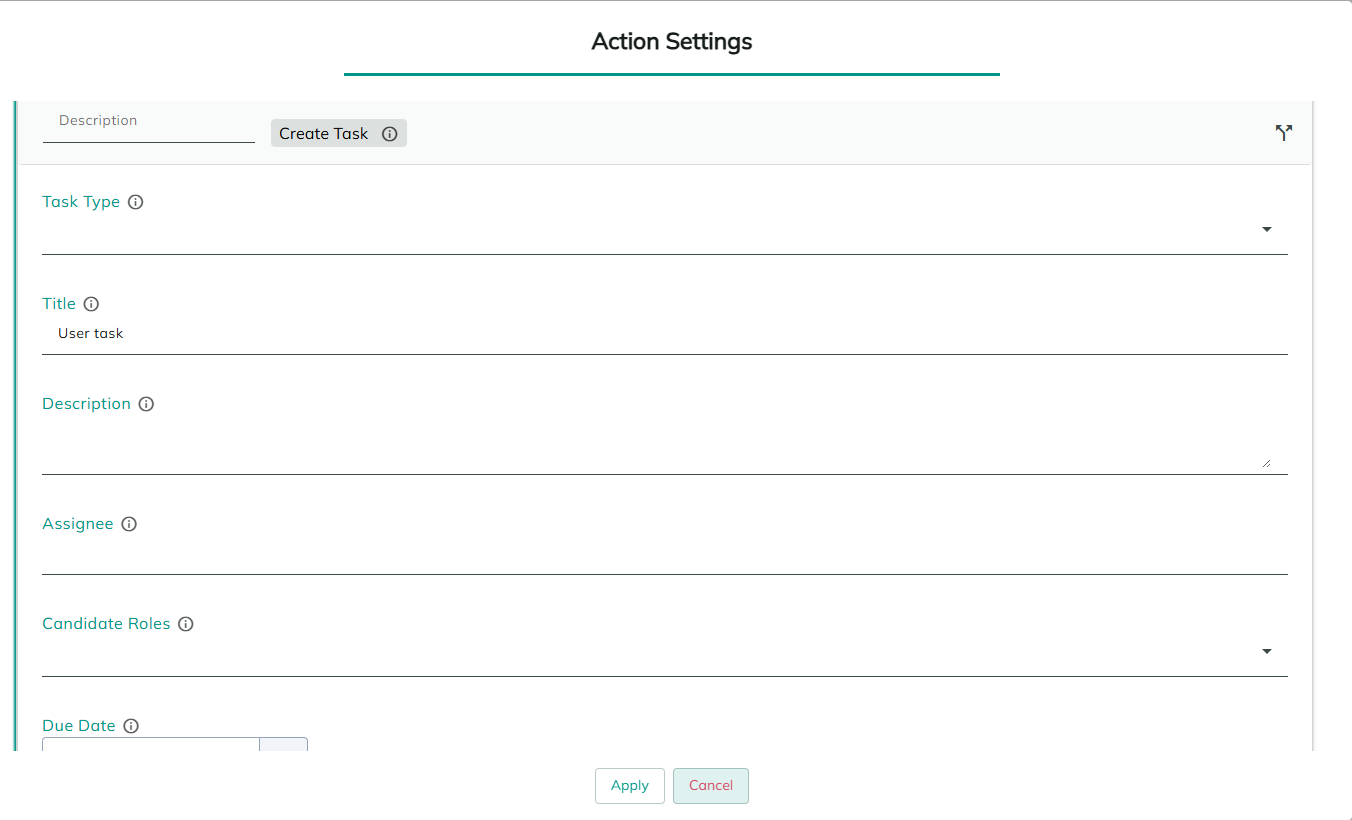
Task Settings on the context pad, or a double-click on the user task, opens the Create Task settings again.
A user task holds exactly one action, its Create Task action, with an Output Token Name. Otherwise saving fails with The user task "Book the invoice" must hold exactly one action, the Create task action of the task it waits for, with an Output Token to keep the task in.
Like every wait, a user task goes at the top level of the workflow: not inside a subprocess, and not on the paths of a parallel gateway.
When the run reaches it
- The Create Task action runs, as the user the run runs as: the user who started the run.
- The run waits for that task and is saved. The task appears in My Tasks for its assignee, or for the members of its candidate roles.
- People work on the task as on any task. Assigning it, Assign to me, delegating it, and the task type's due date and escalation steps act on the task and don't move the run. See Due Dates, Escalation and Events.
- When someone completes the task, in My Tasks or with the Complete Task action, the run continues moments later.
The task type's event workflows still run as Built-in Tasks defines.
If the Create Task action doesn't run, for example because its condition is false, the run fails with "Book the invoice" created no task: its Create task action didn't run.
The completed task's tokens
When the run continues, the Output Token holds the task as it was completed. With the default Task:
| Token | Value |
|---|---|
[Task] | The task's id. |
[Task:Outcome] | The outcome the person chose, as the task type names it, such as approved. |
[Task:CompletionComment] | The comment the person wrote when completing it. |
[Task:CompletedBy] | The id of the user who completed it. |
[Task:Status] | The task's status. |
The task's other fields are set too. See Tasks for the full list.
For example, after a user task Approve the request, an exclusive gateway can take the path with the condition [Task:Outcome] == "approved", and a default path for everything else.
If a loop takes the run back to the same user task, it creates a new task each time.
When the task is cancelled
A task can be cancelled, or deleted, outside the process. The user task then continues with the error TaskCancelled and the message The task was cancelled: followed by the cancellation comment, or The task was cancelled. without one.
To handle it, select the user task, choose Add Error, and set it to Only the error with this code with the code TaskCancelled. Connect the error event to what should happen next, for example creating the task again or ending the run. Without such an error event, the run fails at the user task. See Errors.
Tasks the run cancels
A task should never be left open with no run waiting for it. The run cancels the task it created, as the system, when:
- the run is cancelled in the History tab, with the comment
Run #12 of the workflow that created this task was cancelled.; - the run can't be saved at the user task, for example because it holds more than its size limit;
- the run fails, or ends on another path, before anyone completes the task.
Testing a user task
A test run creates no task, so nobody gets it in My Tasks. The test waits at the user task, and the test panel says Waiting at "Book the invoice" for its task.
- Select Complete Task.
- Enter the Outcome, as the task type names it, for example
approved, and a Comment if you want one. When the test waits at several user tasks, choose the User task first. - Select Complete to continue as if the task were completed, or Cancel Task to continue as if it were cancelled, with the error
TaskCancelled.
In a test, only [Task:Status], [Task:Outcome] and [Task:CompletionComment] are set, since no task exists. See Testing and Debugging.
Considerations
- No timers on a user task. A timer or an event can't go on a user task's border yet. To remind people or hand the task on when it's late, use the task type's due date and escalation steps. See Due Dates, Escalation and Events.
- Task events stay with the task. A task becoming overdue or escalated doesn't reach the process.
- One task per user task. A user task creates one task. To ask several people, draw a user task for each, each with its own Output Token Name.
- Tasks actions in other steps. The other Tasks actions, such as Update Task or Cancel Task, can run in a service task like any action. Only a user task waits for a task.
- The History tab shows a run waiting at a user task as
Book the invoice waits for its task. See Workflow History.
Revised 11/12/2026