Timers, Events and Waiting
BPMN 2.0 workflows are a concept feature. They're still being developed and can change before they're released. They're available only when the site's license includes the Concept feature Bpmn2.
Audience:
Low-code EngineersSkill Prerequisites:
Workflows,Tokens
General Description
A wait is a step where a BPMN 2.0 workflow stops until something happens. A run can wait at:
- a timer, for a duration or until a moment;
- a wait for an event, until another workflow, a form or an API raises it;
- an event-based gateway, for whichever of several timers and events comes first;
- a user task, until a person completes the task it created;
- a call activity, until the workflow it called ends.
Waits go at the top level of the workflow: not inside a subprocess, and not on the paths of a parallel gateway, between the split and its join. The editor offers them only at the top level and marks a wait on a parallel path, and saving refuses both.
Waiting needs Workflows.LongRunning, part of the Enterprise plan. A run that reaches a wait without it fails.
What happens at a wait
- When every path of the run has ended or waits, the run is saved with its tokens and lists, as the wait's settings say. See What a run keeps while it waits.
- The call that started the run ends. Its caller gets the run's id and the status
Waiting. See Calling a workflow that waits. - When the wait is over, the run continues in the background, as the user who started it, until it ends or waits again. Timers are checked every 30 seconds; an event or a completed task usually moves the run on within moments.
A saved run survives restarts of the site. It stays on the version of the workflow it started on, to its end, even after you change the workflow. The runs that wait are listed in the History tab.
Timers
A timer waits for a duration, or until a moment, then the run goes on.
- Select an element at the top level and choose Add Timer. The timer is added after it and its dialog opens.
- Choose After or At, set the time, and choose what the run keeps while it waits.
- Select OK. Cancel removes a new timer.
Timer Settings, or a double-click on the timer, opens the dialog again.
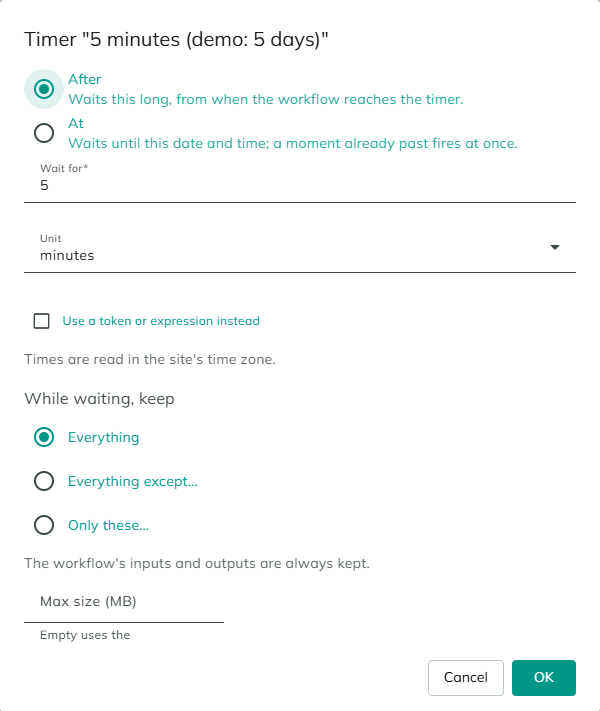
| Setting | Description |
|---|---|
| After | Waits this long, from when the run reaches the timer. Enter a number in Wait for and a Unit: minutes, hours, days or weeks. |
| At | Waits until this Date and Time. A moment already past fires at once. |
| Use a token or expression instead | Replaces the fields with one text box. For After, a token whose value is how long to wait, such as [TaskType:ReminderAfter]. For At, a token whose value is a date and time, such as [Contract:StartDate]. The tokens are read when the run reaches the timer. |
| While waiting, keep and Max size (MB) | What the run keeps while it waits here. See What a run keeps while it waits. |
Times are read in the site's time zone. The timer is named after its time, such as Wait 5 minutes or Wait until 15 Dec 2026, 09:00, unless you give it a name of your own.
Durations and moments from tokens. A duration can be written as words, such as 3 days, 2 hours 30 minutes or 90 min, or in ISO 8601, such as P3D or PT2H30M. Days, weeks, months and years keep the time of day in the site's time zone; hours, minutes and seconds are elapsed time. A moment can be written as 2026-12-15 09:00, read in the site's time zone, with a time zone offset, used as it is, or in the site's date format. A date alone means midnight. A text the timer can't read stops the run, for example with The timer "Reminder" couldn't read "soon" as a duration. Write it like 3 days, 2 hours or 30 minutes.
A timer that's already due doesn't wait. When the moment of an At timer has passed, the run goes on through the timer in the same call.
A timer fires up to 30 seconds after it's due, when the next check runs. In a test, Fire now fires it at once. See Testing and Debugging.
Events
An event is a name, an optional key and a payload of values. One part of the application raises it, and the BPMN 2.0 runs that wait for it continue, or the workflows that start on it start. For example, the After workflow of the Order transition raises Purchase request ordered with the request's id as the key, and the Purchase follow-up run for that request continues.
- The name connects the workflows that raise and receive it. Events belong to the site they're raised on.
- The key says which run the event is for, such as a record's id. With a key, the event reaches the one run that waits for that name and key. Without a key, it reaches every run that waits for that name without a key.
- The payload is a list of names and values. Each value is set as a token of that name on the run that continues, replacing a token of the same name. Values are text.
Waiting for an event
- Select an element at the top level and choose Add Wait for Event. The event dialog opens.
- Enter the Event name, and a Key if the event is for one run, such as
[PurchaseRequestId]. The key is read when the run reaches the wait. A key that's empty at that moment means the run waits for the event without a key. - Choose what the run keeps while it waits, and select OK.
Event Settings, or a double-click, opens the dialog again. The element is named after the event, such as Wait for Purchase request ordered, unless you give it a name of your own.
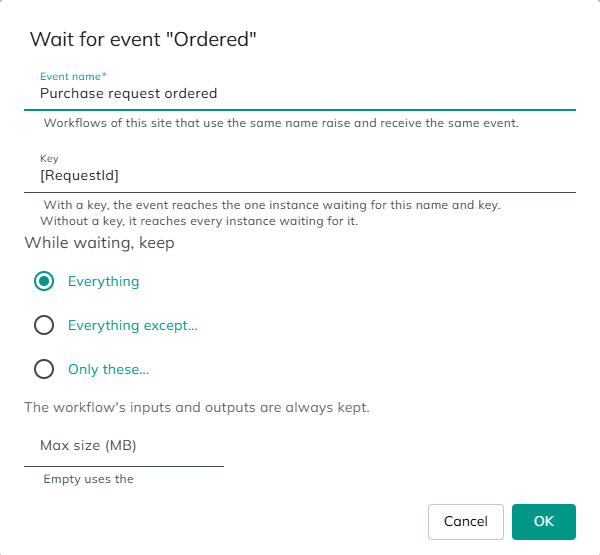
How an event reaches a waiting run:
- With a key, it reaches the run that waits for that name and key, the one that started waiting first. When no run waits yet, the event is kept for 7 days from when it was raised. A run that reaches the wait in that time receives it: the run is still saved at the wait, and continues moments later.
- The same name and key raised again does nothing while the first one is kept, received or not, unless a run waits for it at that moment. Repeated callbacks are harmless.
- Without a key, it reaches every run waiting for it at that moment. A run that reaches the wait later doesn't receive it.
Raising an event
An event is raised by the Raise Event action, in any action list on either engine, or by an element on a BPMN 2.0 diagram:
- Add Raise Event raises the event, and the path goes on.
- Add Raise Event and End raises the event, then ends its path.
The dialog has the Event name, the Key, and the Payload: rows of Name and Value, added with Add. Values can hold tokens, such as [Total]. The element is named after the event, such as Raise Purchase request ordered.
Raising never waits, so these elements can go anywhere, also inside a subprocess and on the paths of a parallel gateway. The event is raised as the run's user. The runs it reaches continue in the background, never inside the run that raised it.
Starting on an event
A workflow can start when an event is raised, instead of being called.
- Select the start event at the top level and choose Start on Event.
- Choose Start on this event, enter the Event name, and select OK. The start event takes the event's name.
To go back, open Event Settings on the start event and choose Start with a plain start event.
- Inputs. The event's payload fills the workflow's inputs of the same name. Other values are left out. A List input gets an empty list, and a missing required input fails the start.
- Who and when. The workflow starts in the background, moments after the event is raised, as the user who raised it. It runs until its end or its first wait, like any run.
- Which events start it. An event without a key starts every workflow that starts on it. An event with a key starts them only when no run is waiting for that name and key; the start then uses the event up, and no later wait receives it.
- Failures. A start that fails is written to the log and isn't tried again.
- Licensing. Starting on an event needs Workflows.LongRunning, part of the Enterprise plan, even when the workflow never waits.
The workflow can still be called through its Execute action and tested with the Test button. A subprocess can't start on an event: The subprocess "Collect quotes" starts on an event. A subprocess starts with a plain start event; to start on an event, use a workflow of its own.
Waiting for the first of several
An event-based gateway waits for whichever of several timers and events comes first, for example the delivery or a 5-minute timeout.
- Select an element at the top level and choose Add Event-Based Gateway.
- On the gateway, add a path for each thing it waits for with Add Timer or Add Wait for Event. It needs at least two.
- Continue each path from its timer or wait for event.
The run waits at the gateway for all of them at once. The first one to happen takes its path, and the others are dropped. A timer that's already due when the run arrives takes its path at once.
Each path leads straight to a timer or a wait for an event, with no condition, and nothing else leads to that timer or wait. Otherwise saving fails with The event-based gateway "Delivered or late" must lead only to timers and waits for an event, each with no other incoming flow and no condition on its flow.
Waiting for a called workflow
A call activity at the top level that calls a workflow that waits, waits with it. The called workflow runs as its own run, listed in the History tab as called by #9. When it ends:
| The called run | The call activity |
|---|---|
| Completes | Goes on. The called workflow's outputs come back as its Execute action's settings map them. |
| Fails | Its error goes to the call activity's error events, by its code, with the called workflow's message in [ExceptionMessage]. Otherwise the run fails too. |
| Is cancelled | The call activity's error events see the code Cancelled. |
The Execute action's own On Error and Continue On Error don't apply to a failure that comes after the wait.
Inside a subprocess, a call activity doesn't wait: it starts the called run and goes on, like an Execute action. On the path of a parallel gateway, a call to a workflow that waits fails the run with The call activity "Ask manager" is on a branch of the parallel gateway "Split" and the workflow it calls can wait, which nothing on a branch can do yet. Move it before the parallel gateway or after its join.
Calling a workflow that waits
Each BPMN 2.0 workflow has a wait behavior, worked out from its diagram when you save it and shown in the engine bar:
| Wait behavior | When | What its Execute action gives back |
|---|---|---|
| Finishes in the call | No wait can be reached. Workflows on the current engine, and workflows just upgraded, finish in the call. | Its outputs, as always. |
| May wait | Some paths reach an end without a wait. A timer At a moment, or After a duration from a token, counts here even on a path that has no other wait. | The run's id and status, and the outputs when the status is Completed. |
| Always waits | Every path from the start to an end passes a wait. | The run's id and status. The action has no output settings. |
When a workflow can wait, its Execute action gets two more settings and a note that says what the call does:
| Setting | Description |
|---|---|
| Store instance id in | The name of the token that receives the id of the workflow's run, when it waits. |
| Store status in | The name of the token that receives the status: Waiting, or Completed when the workflow ended in the call. |
An Execute action ends its call at the workflow's first wait, and the actions after it go on. To wait for a workflow and use its outputs, call it from a call activity at the top level of a BPMN 2.0 workflow. The Run Workflow token has no settings for the run's id and status: use it only with workflows that finish in the call.
When the behavior changes. If a save changes what the workflow does when it's called, and something calls it, a dialog titled What the workflow does when called changes says what the workflow will do and lists the callers of its Execute action, such as forms, form buttons, APIs, scheduler jobs and other workflows, with a note on calls inside a subprocess. Save anyway saves; Cancel doesn't. Check those callers after you save: they now get what the new behavior gives back.
What a run keeps while it waits
A run keeps its tokens and lists until it ends, also while it waits. Each timer and each wait for an event has these settings:
| Setting | Description |
|---|---|
| While waiting, keep | Everything (the default), Everything except… the tokens and lists you list, or Only these… tokens and lists. Add each one as a Token or a List by its name. |
| Max size (MB) | The most the run may hold while it waits here. Empty uses the default, 10 MB. |
The workflow's inputs and outputs are always kept. When a run waits at several places at once, it keeps everything any of them keeps, under the largest of their limits. A user task has no such settings in the editor: it keeps everything, up to 10 MB.
- Over the limit, the run stops at the wait with an error and nothing is saved, for example
The workflow couldn't wait at "Wait 5 minutes": it holds 14.2 MB and the limit is 10 MB. The largest items are the list ImportRows (13.8 MB) and the token ApiResponse (0.3 MB). Keep fewer items at this wait, or clear what you no longer need before it. - Above 1 MB, the run is saved with a warning in the test panel and the log.
- Live objects, such as open streams or connections, can't be saved. They're left out, with a warning that names them.
- Values come back with their type when they're text, numbers, dates, yes/no or JSON. Other objects come back as JSON.
- Lists are saved as copies. After the wait, the run's list and the caller's list are separate.
- Records are better kept as ids. A token that holds a record's id stays small, and reading the record after the wait gives its current values.
Restarts and failures
Waiting runs are saved in the database, so a restart doesn't lose them: the next check after the site starts continues the runs that are due.
A run that was running a step when its server stopped can't be continued safely, since the step may have already sent an email or written a record. After 5 minutes without a sign of life from its server, it's marked Failed at its last saved position. The engine never runs the step again on its own. Check what the step did, then cancel the run in the History tab.
Considerations
- No wait for a lifecycle state. Waiting until a record reaches a state of its lifecycle isn't available yet. Raise an event from the transition's After workflow and wait for that event instead.
- No deadline on a wait. A wait has no time limit of its own. To give up after a while, use an event-based gateway with a timer.
- Who can raise an event. Raising has no permission check of its own. Anyone who can run an action list that raises the event can continue the runs waiting for that name and key. See Raise Event.
- Tests and real runs don't mix. An event raised in a test run reaches only test runs and starts no workflow, and a real event never reaches a test run.
Revised 11/12/2026